Savant Power & Light App - Energy Monitoring
| Document Date: | July 2025 |
Overview
Energy Monitoring devices are configured within the Energy Monitoring tab of the Savant Power & Light App. This option is only available when an energy monitoring device is discovered by the Director. All physical connections between the energy monitoring device(s) and the circuit(s) being monitored should be made before continuing.
This guide is one of several that describe the functions within the SP&L app. For links to all available articles, refer to the Savant Power & Light App (SP&L) – Initial Smart Panel Configuration.
Add Energy Monitor
The steps below represent adding a SmartEnergy Monitor to a Config to monitor a EV charger with contactor.
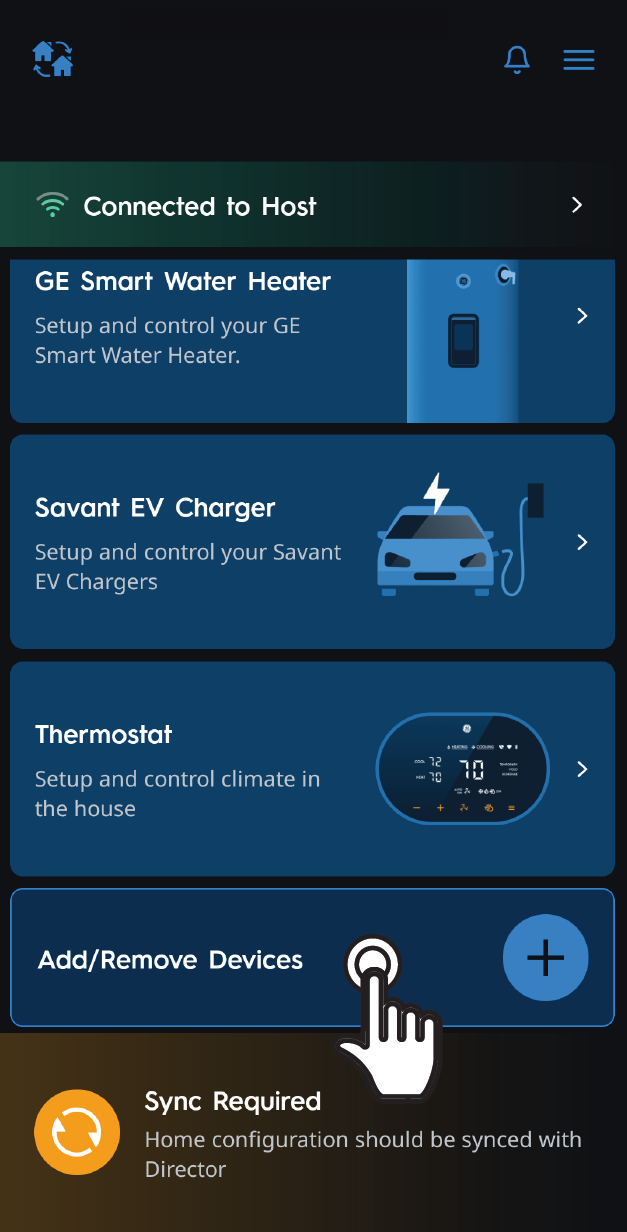 | 1 | Scroll down and tap Add/Remove Devices. |
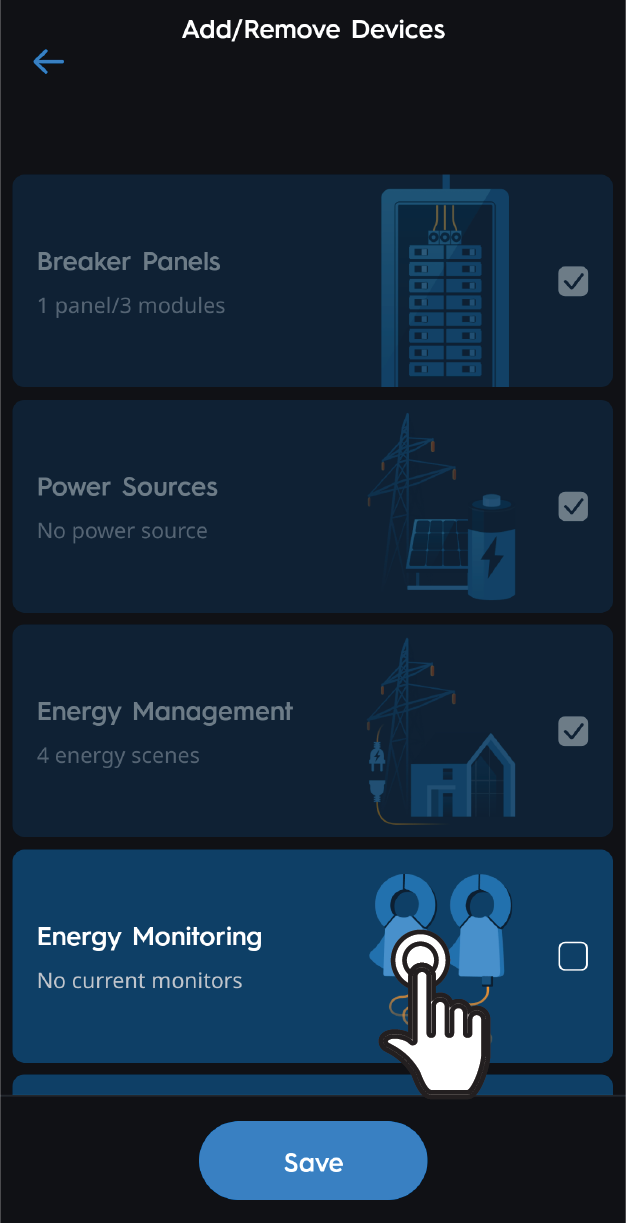 | 2 | Tap Energy Monitoring. |
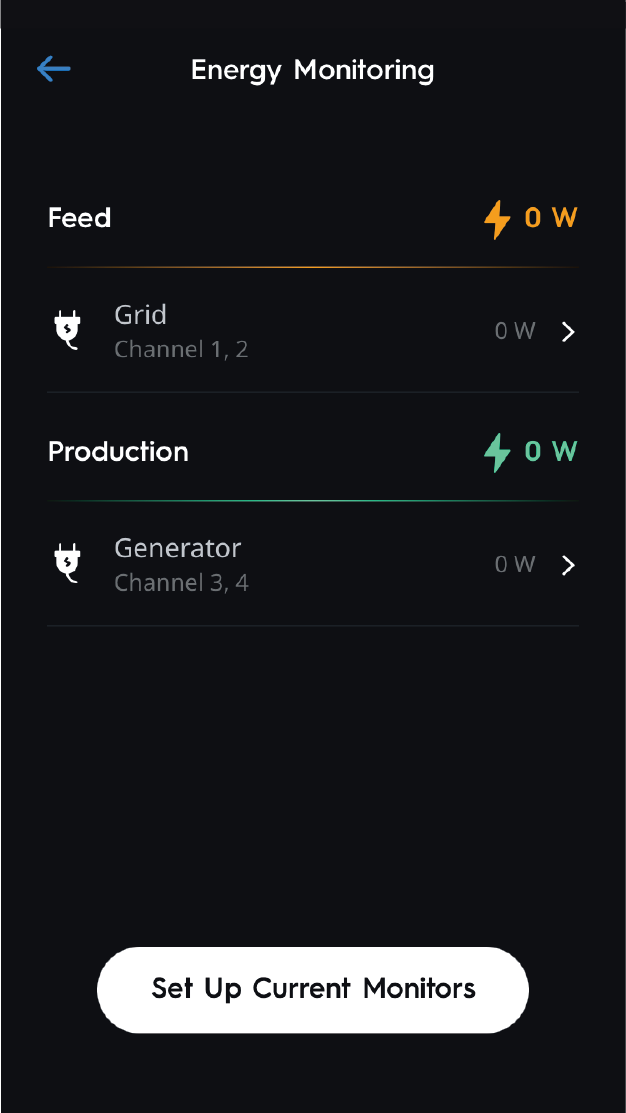 | 3 | All configured current monitoring devices will appear here. |
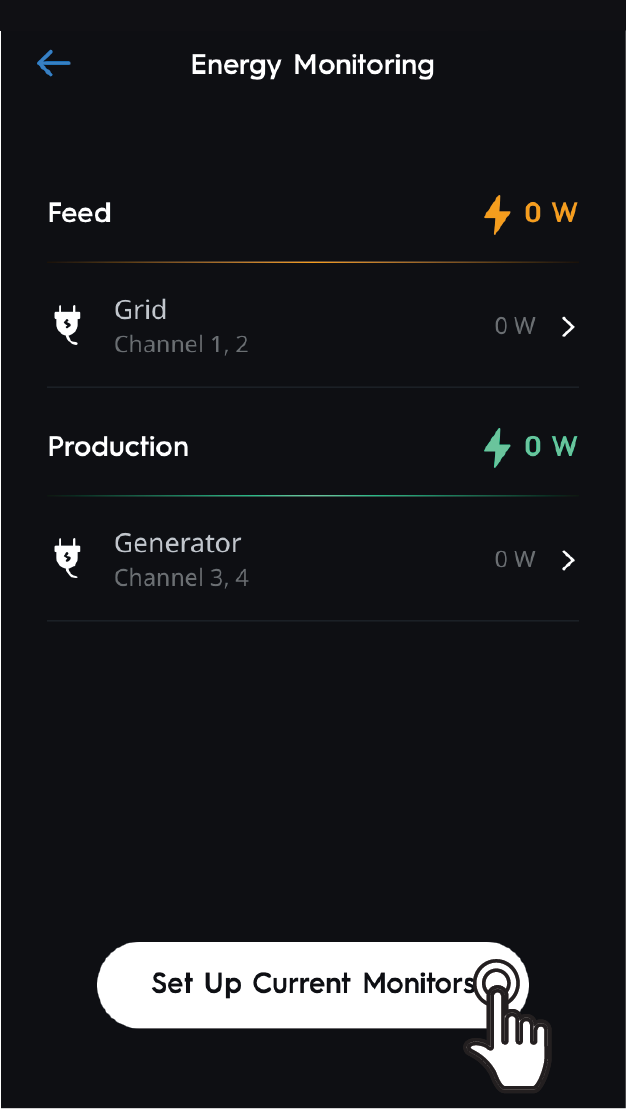 | 4 | Tap an existing monitor or tap Set Up Current Monitors. |
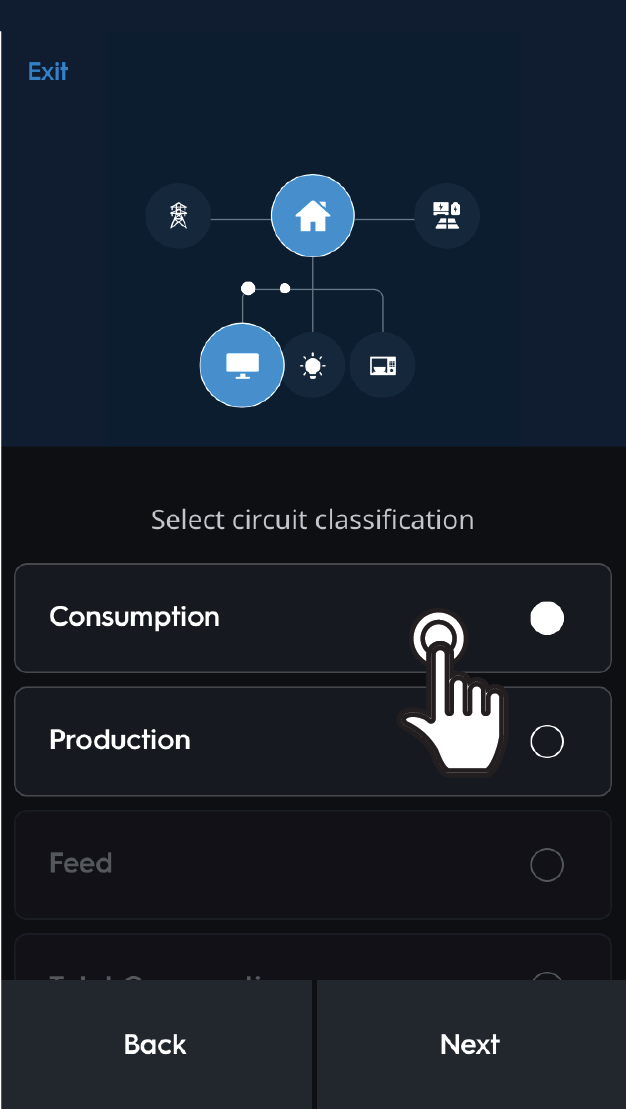 | 5 | Choose circuit classification and tap Next. |
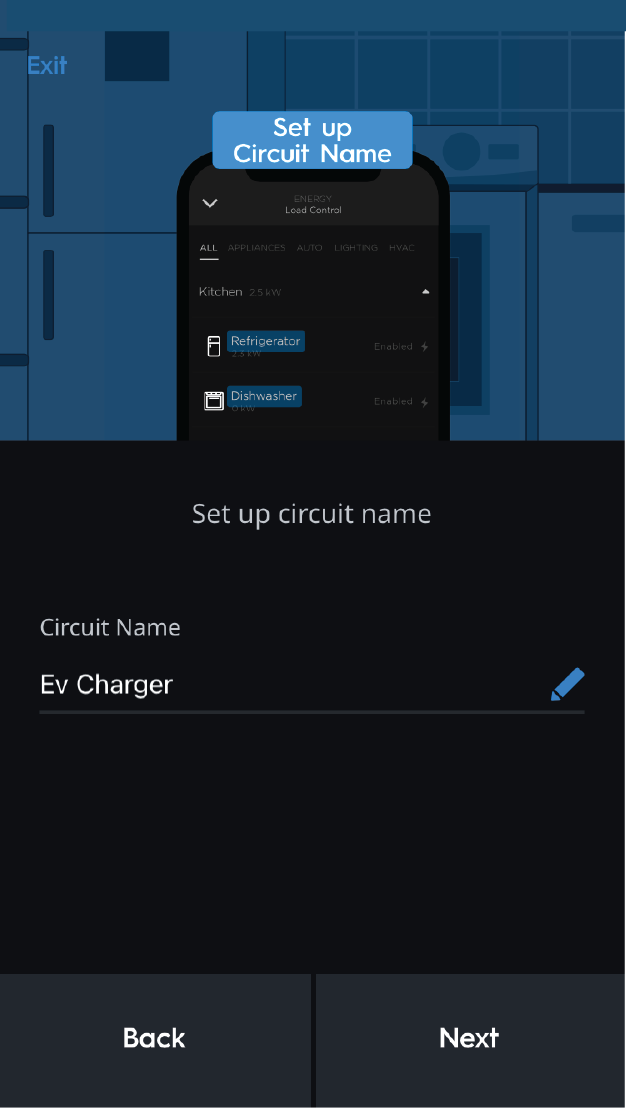 | 6 | Enter the circuit name as it will appear in the app and tap Next. |
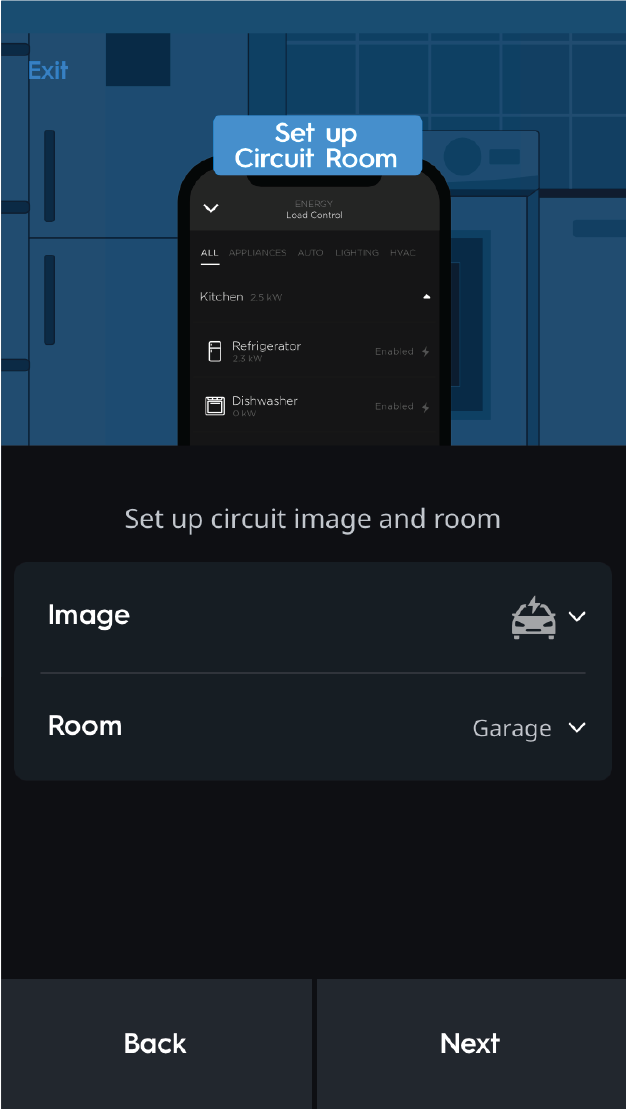 | 7 | Choose circuit image and room and tap Next. |
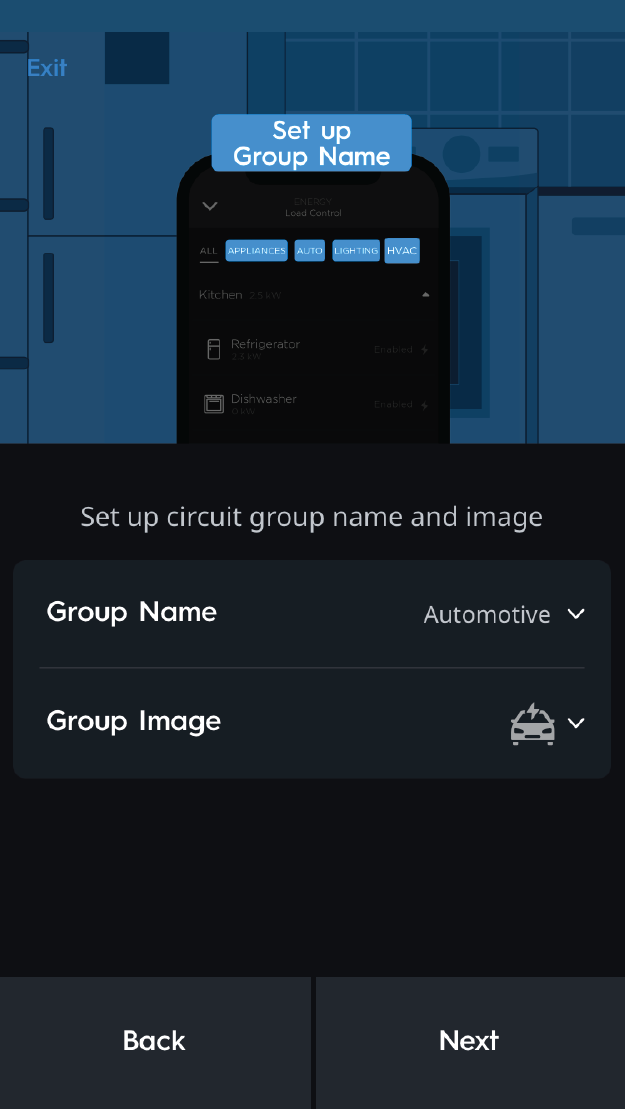 | 8 | Choose circuit group name and group image and tap Next. |
Configure Channels
After naming and grouping the energy monitor, the following prompts will automatically appear to guide the installer through configuring channels.
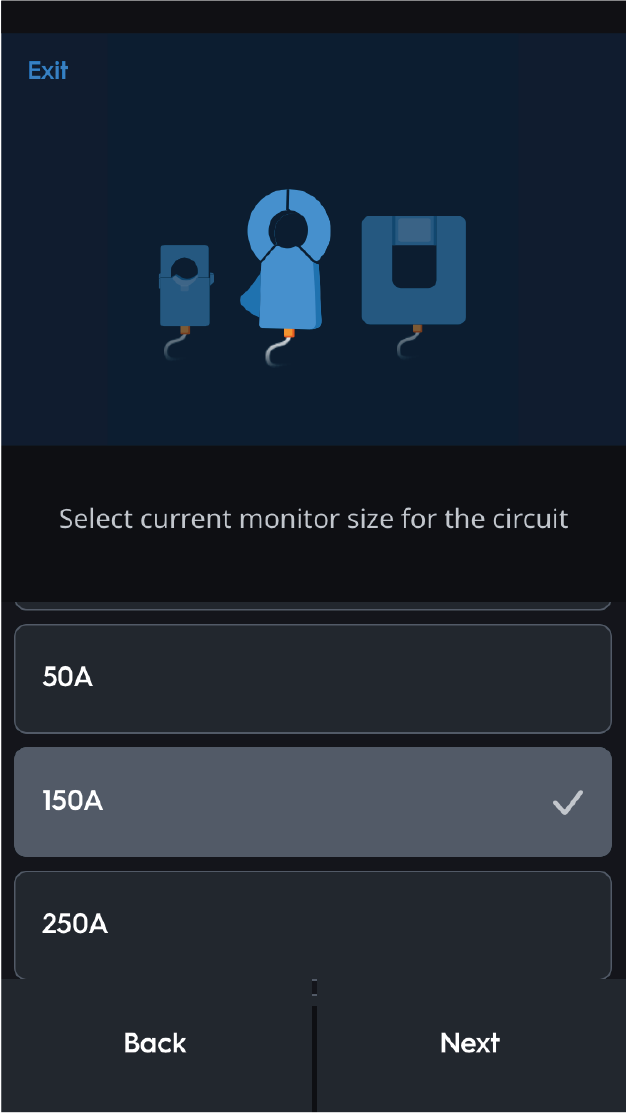 | 1 | Choose current monitor size and tap Next. |
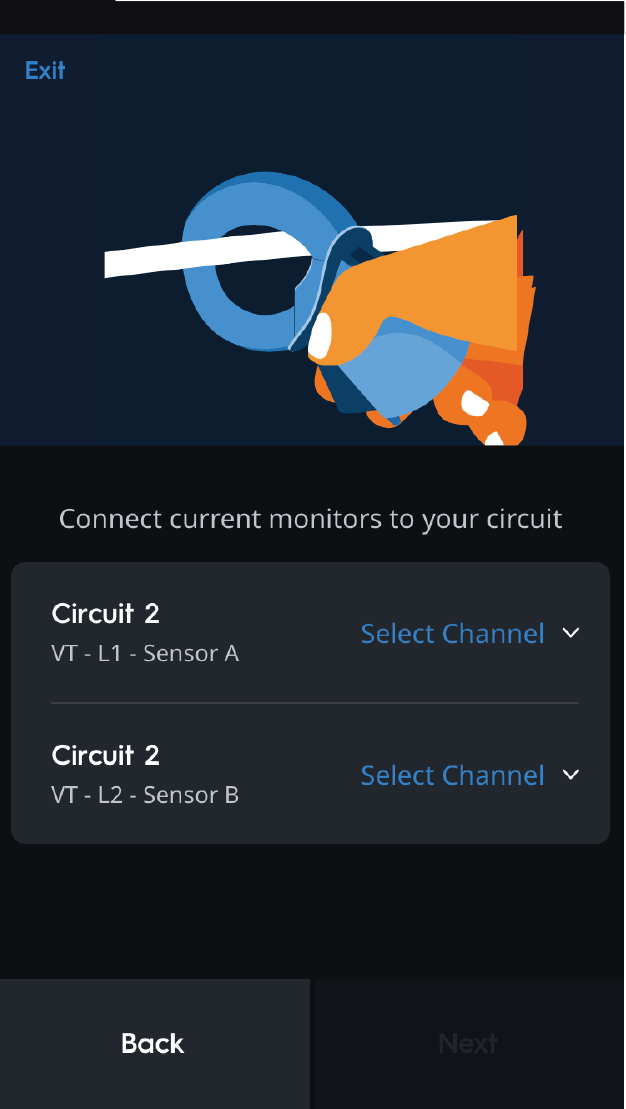 | 2 | Tap Select Channel on Sensor A or Sensor B. |
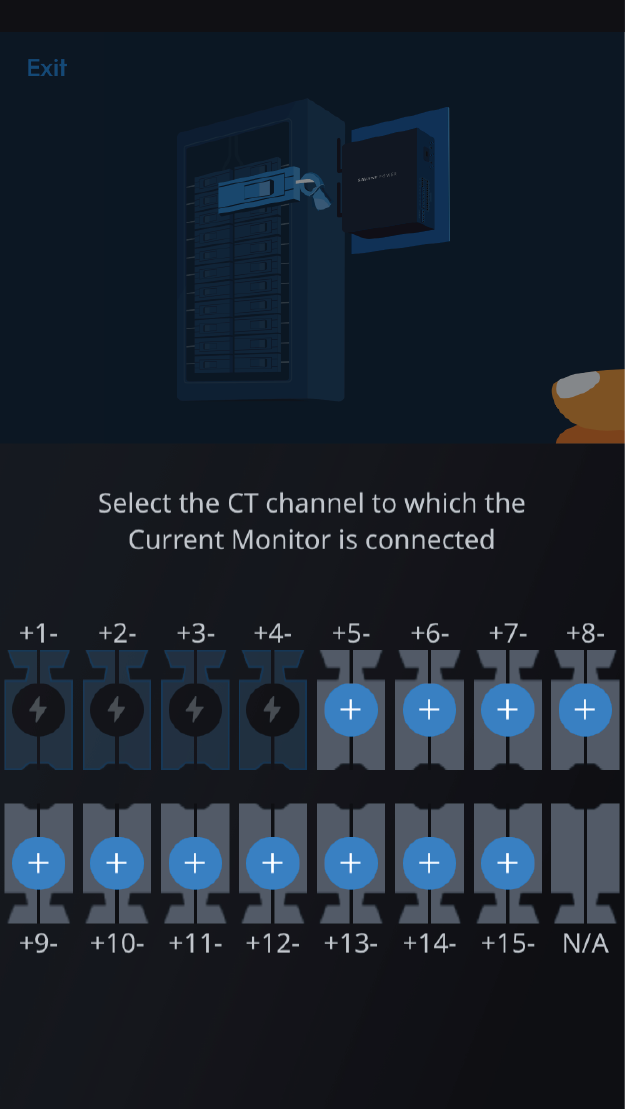 | 3 | Tap the CT channel the sensor is connected to. |
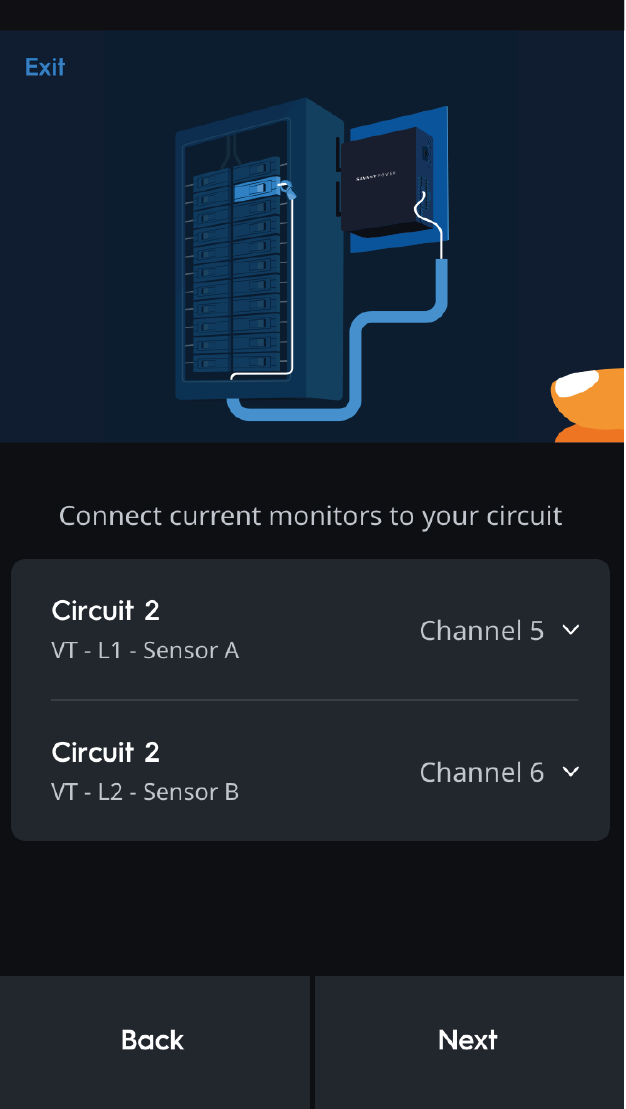 | 4 | Tap Next. |
Contactor Setup (If Applicable)
If the monitored circuit has a contactor, it must be configured before continuing. If not, skip this section.
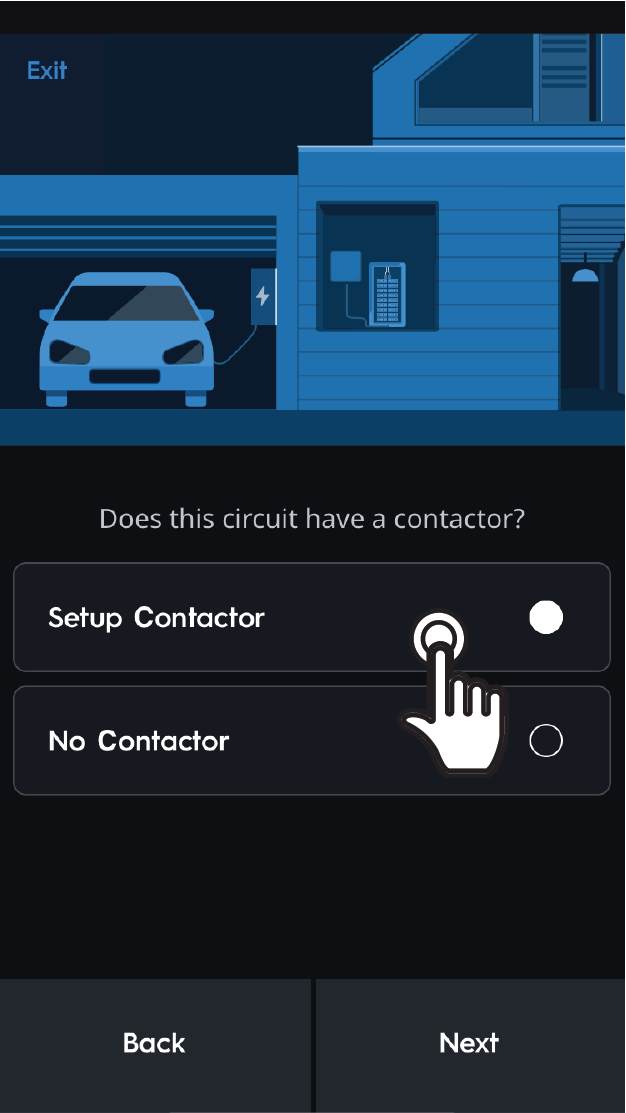 | 1 | Select Setup Contactor and tap Next. |
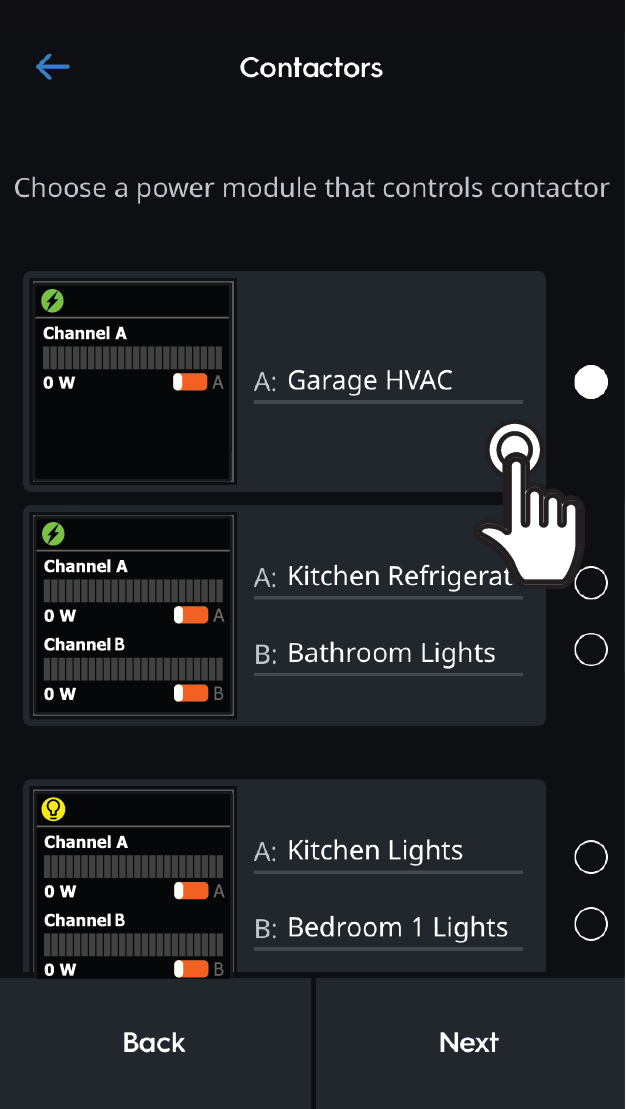 | 2 | Tap the power module that controls the contractor and tap Next. |
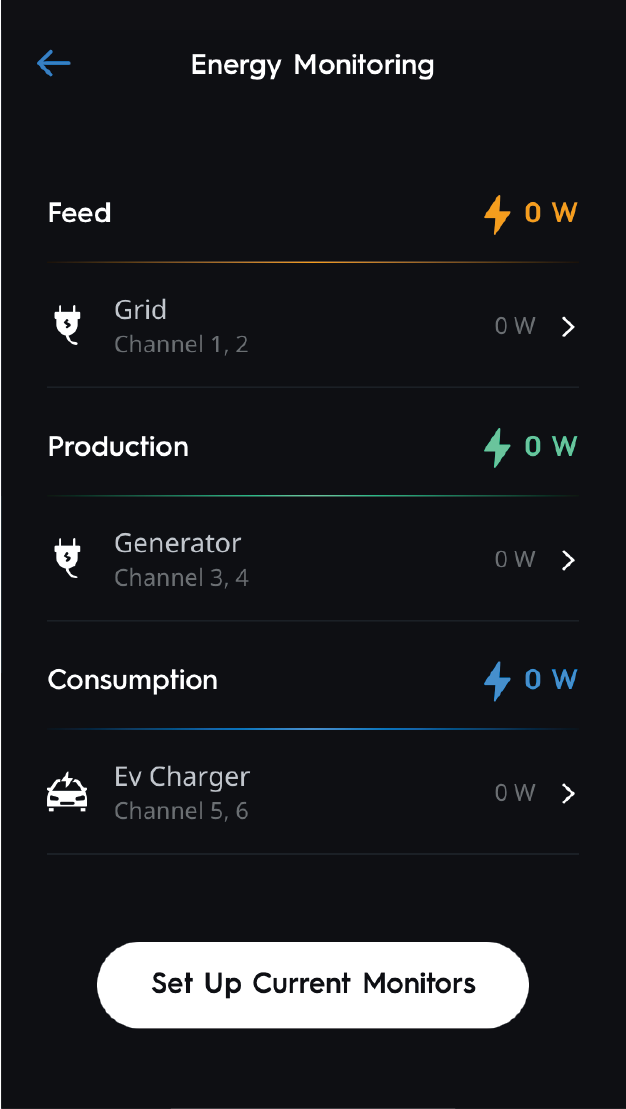 | 3 | The monitored circuit will appear in the Energy Monitoring screen. |