Savant Power and Light App - Power Module Information
Document Date: July 2025
Overview
This document describes Power Module functionality and status icons. For more information on Power Modules within the context of the Savant Power & Light app, refer to Savant Power & Light App (SP&L) – Initial Smart Panel Configuration.
Power Module LED Screen
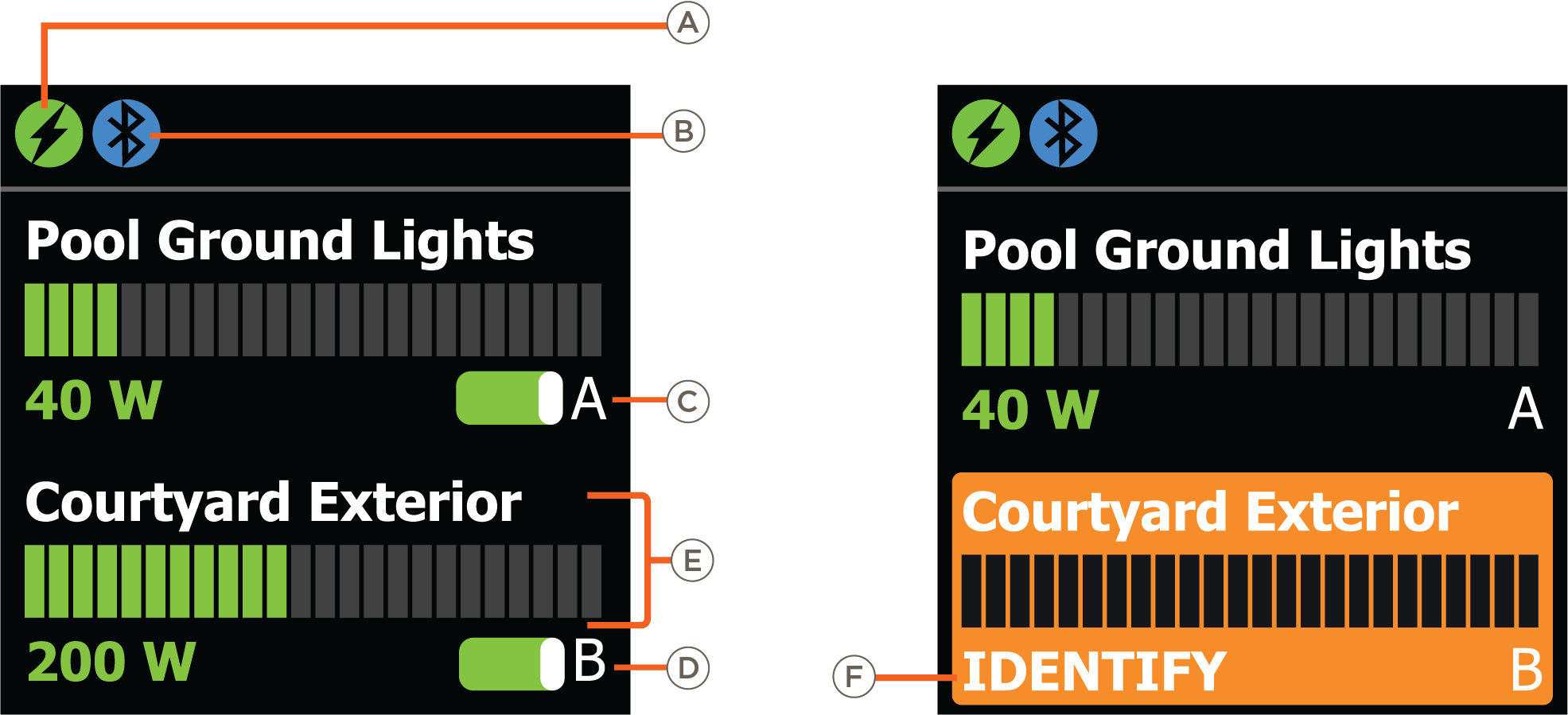
| Icon | Description | |
| A | Module Type |  Power Module Power Module |
 Current Track Module Current Track Module | ||
 Dimmer Module Dimmer Module | ||
| B | Module State |  Module is paired Module is paired |
 Module is unpaired Module is unpaired | ||
| C | Channel A Circuit Switch | See Circuit Power Switches |
| D | Channel B Circuit Switch | See Circuit Power Switches |
| E | Channel Information | Circuit Name and live consumption (in watts) |
| F | Identify | The module is being located using the Identify Device feature. |
Circuit Power Switches
The Power Module LED screen and Breaker Panel screen represent the current state of the circuits a Power Module controls as Circuit Switches. The table below lists all possible states and their definitions.
NOTE: Icon definitions are relevant to the type of Home Backup
| Icon | Description |
 |
|
 |
|
 |
|
 |
|
 |
|
 |
|
 |
|
 | AUTO Mode (Budget Only): Disables toggling Power Module Installer Mode (ON) using front dip switch |
PAIR Button Functions
The PAIR button is located on the front of the Power Module. Pressing the PAIR button, depending on the length of the press, determines its function as listed in the table below:
| Length of Press | Action | Description |
| Press and Release | Cycle | Cycle through actions available in the menu displayed on the Power Module LED screen |
| Press and Hold (1 second) | Select | Selects the option highlighted within the menu |
| Clears the names and assigned slot numbers (when viewing the reset info module screen) | ||
| Press and Hold (2 Seconds) | Pairing | Power Module enters pairing mode |
| Press and Hold (5 Seconds) | Reset | Resets the Power Module |