Smart Hot Water Heater Service Deployment Guide
- Document Date: April 2026
- Document Supports:
- SP&L Version 3.3 and higher
- Blueprint 11.2 and higher
- Savant App 11.2 and Higher
- GE Smart Water Heater (Model # GE50S10BMM)
Overview
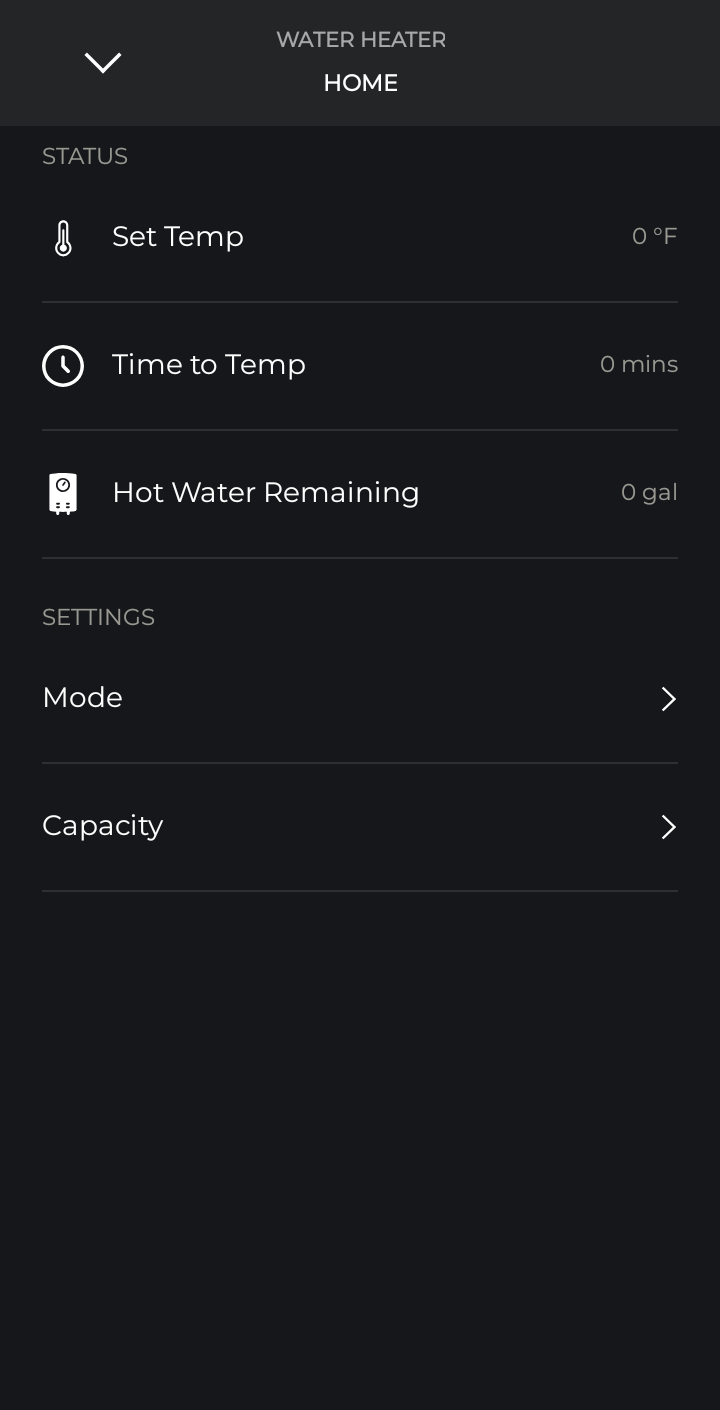
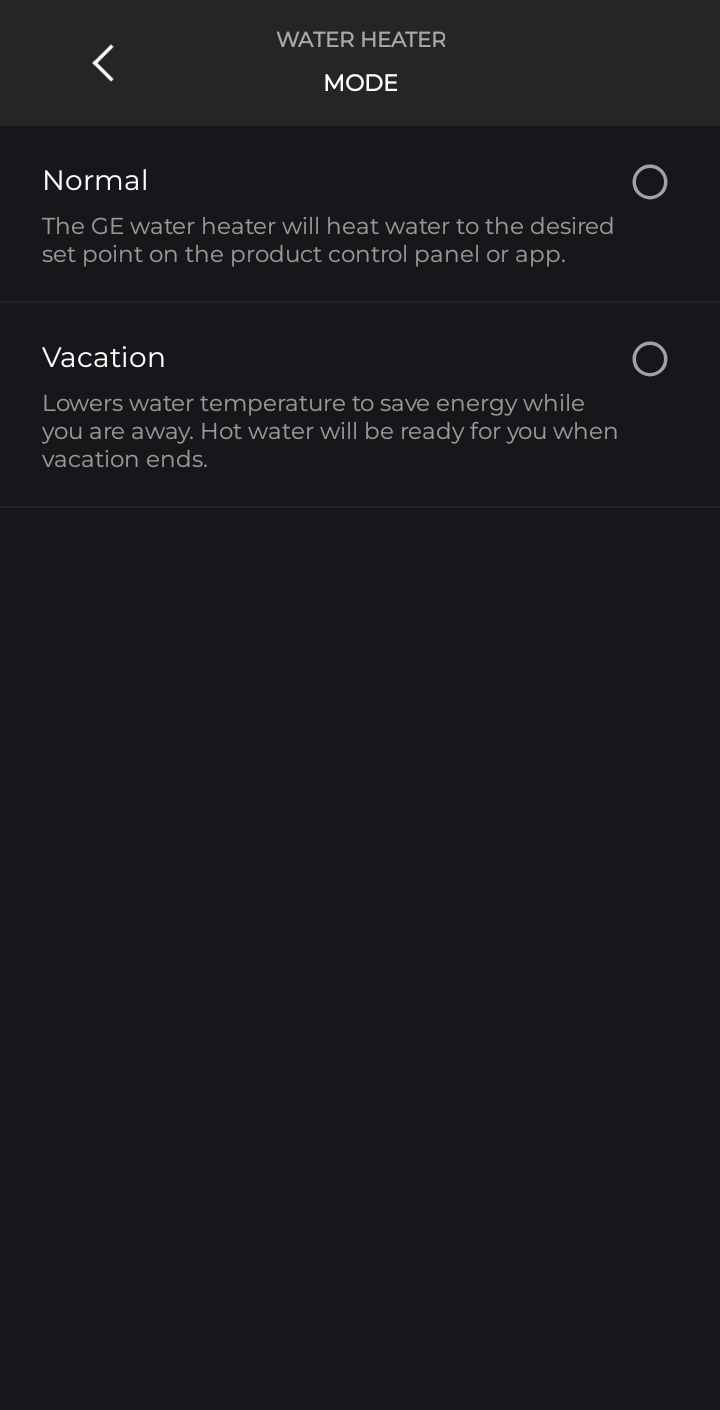
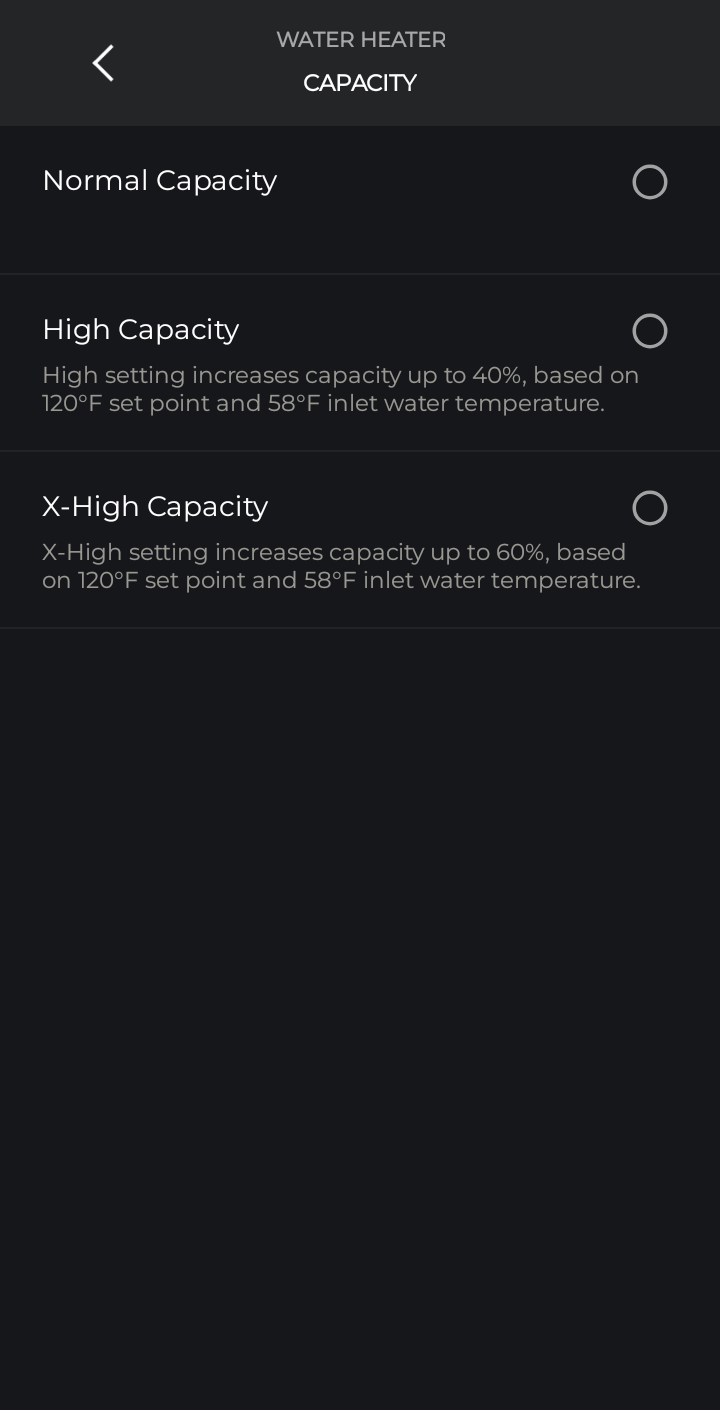
The Hot Water Heater Service in the Savant app provides monitoring and control for the GE Smart Water Heater. It displays the current temperature set point, the estimated time to reach that temperature, and the remaining hot water capacity. The service also allows adjustment of operating modes, including Normal and Vacation, as well as capacity settings such as Normal, High, or Extra High to balance energy efficiency and hot water availability. This service is used to optimize comfort, reduce energy consumption during low-demand periods, and increase available hot water when higher usage is expected.
Important Notes:
- The following guide assumes the GE Smart Water Heater is already physically installed and connected to Wi-Fi via the GE SmartHQ app before any Savant setup begins.
- Integration with Savant requires a continuous cloud-to-cloud connection. When the internet is out, the system will be unable to send commands or receive status updates from the water heater.
- Does not support Scenes or Savant app notifications at this time.
Step 1: Add the Hot Water Heater to the Savant Home
The GE Smart Water Heater can be deployed within a Savant Home using one of two methods: the Savant Power & Light app (version 3.3 or later) for Directors deployed with SP&L, or Blueprint (version 11.2 or later) for Hosts deployed and programmed with Blueprint.
Method 1: Savant Power and Light App Setup
- Connect to a Home > Add/Remove Devices, check off GE Smart Hot Water Heater, then Save.
- Tap the Hot Water tile, then tap + to add a Water Heater to the configuration.
- Sync the config to the Director and continue setup in the Savant app.
Method 2: Blueprint Setup
- With an existing configuration, open the library.
- Search "Hot Water Heater" and drag it into the Shared Equipment zone.
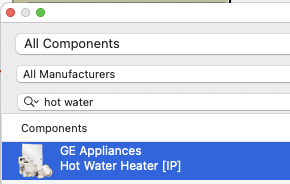
- Generate services.
- Confirm the Hot Water Heater Service is shown in the View Services window.
- Upload the configuration to the Host and continue setup in the Savant app.
Step 2: Link the Hot Water Heater in the Savant App
Follow the steps from the Savant app to link the GE Smart Water Heater.
- Connect to the same Home in the Savant app where the GE Smart Water Heater was added using the SP&L app or Blueprint.
- Navigate to Settings > Devices > Water Heater.
- Tap + in the top right to add the GE SmartHQ account to Savant and link the Water Heater.
Hot Water Service Overview
From the Savant app service dock, tap the Hot Water service icon.
- The status for Temperature Set Point, Time to Temp, and Hot Water Remaining can be viewed.
- The Water Heater's Mode can be set to Normal or Vacation.
- The Water Heater's Capacity can be set to Normal, High, or Extra High to provide more or less hot water.