Savant Central Management (SCM) - User Guide for Power Professionals
| Document Date: | December 2023 |
| Document Supports: | da Vinci 10.2.3 and higher |
Overview
Savant Central Management (SCM) is an application that runs on the Savant Cloud, leveraging the power and infrastructure of Savant Cloud Services (SCS) to enable remote monitoring, system management, and Job organization from one easily accessible, central location. SCM is accessed via a web portal that allows shared access to key Job information, configuration files, and direct communication/uploads to a live Power Director on-site from anywhere.
This article briefly introduces SCM and details the specific features, functions, screens, and elements within the SCM interface.
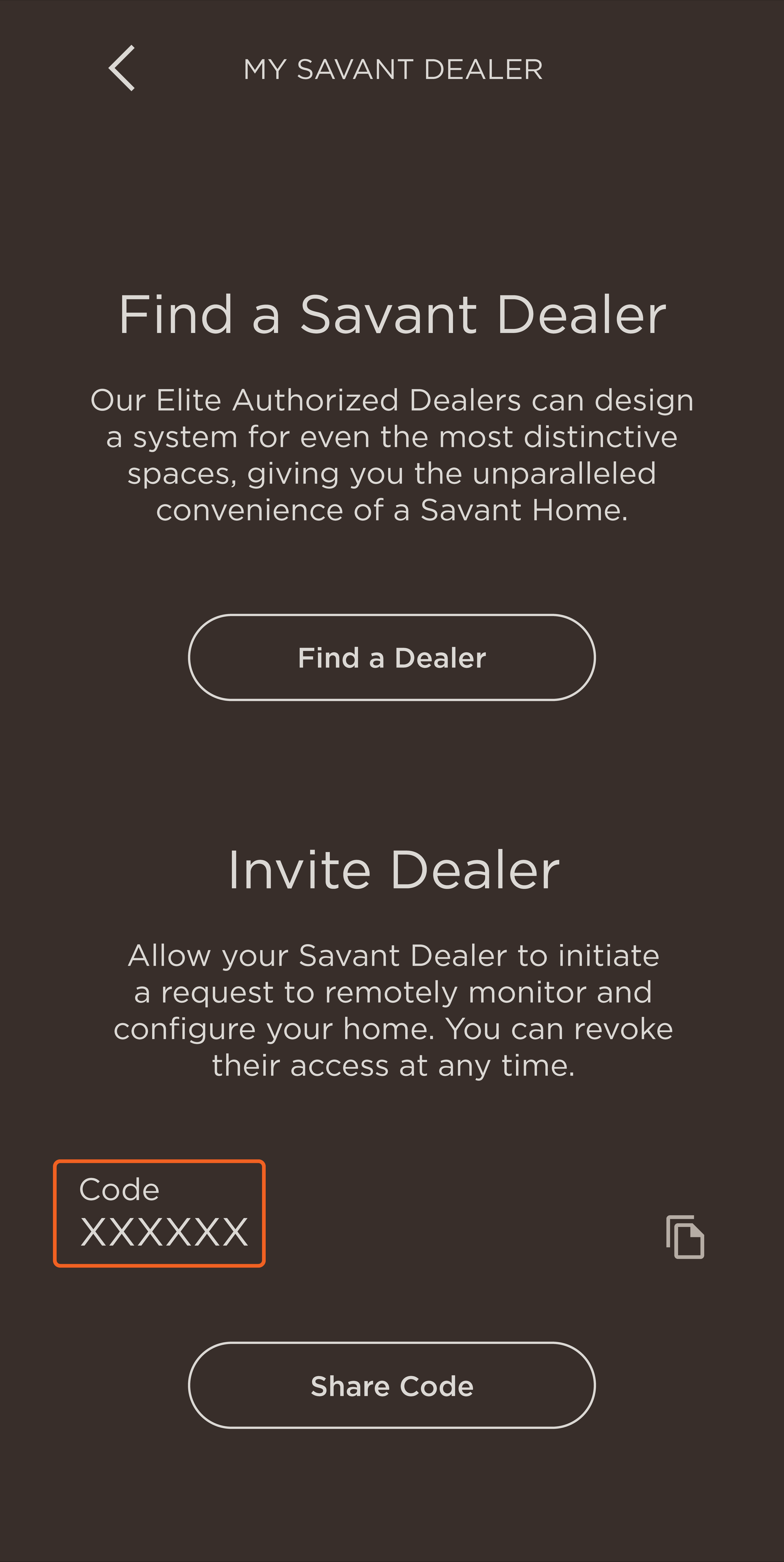
SCM uses a top-down organization system based around the Domain, an object that can be organized based on location, customer, or any other desired designation. The domain represents the company and connects to already deployed Savant Power systems. These can be organized using Groups or Sub-Groups. Jobs are then added within a Group or Sub-Groups to represent each system in the field. The SCS Home is the Savant Cloud-side representation of a Power Director and must be claimed to show up in SCM. Power Directors are claimed to an SCS Home using the Claim Code in the Savant app via Settings > My Savant Dealer.
Groups can be conceptualized as directories in a file system, with Jobs being the files contained within.
Team members can be added to any Group by an Admin User and can access any Job within that Group. Team Members log in to SCM using the same SCS User credentials to access the Savant app.
SCM provides information about the Savant Power System, including:
- Power Director UID, system health, Power Director version, active configuration, and number of users.
- Total house consumption (W), grid status, solar production, battery state of charge, and generator power production.
- Message Center: Displays a summary of Total Consumption and Top Consumers for the day and week and a history of additional Energy Insights and Power Events.
- Live load status.
- A summary of data from an integrated Savant Power System’s breaker panel which includes all configured Savant Power System breaker panels and installed Power Modules.
Accessing Savant Central Management
 IMPORTANT NOTE: Contact permissions need to be enabled for SCM access from the Savant Community's Contact Management page from an Admin or Team member. If unable to log into SCM, refer to the Savant Contact Management article to enable the required permissions. If unable to edit or access contacts from Contact Management, someone within the same company with Admin or Team permissions will need to enable permissions for the desired contact.
Log into SCM by following the steps below:
- Go to https://central.savant.com.
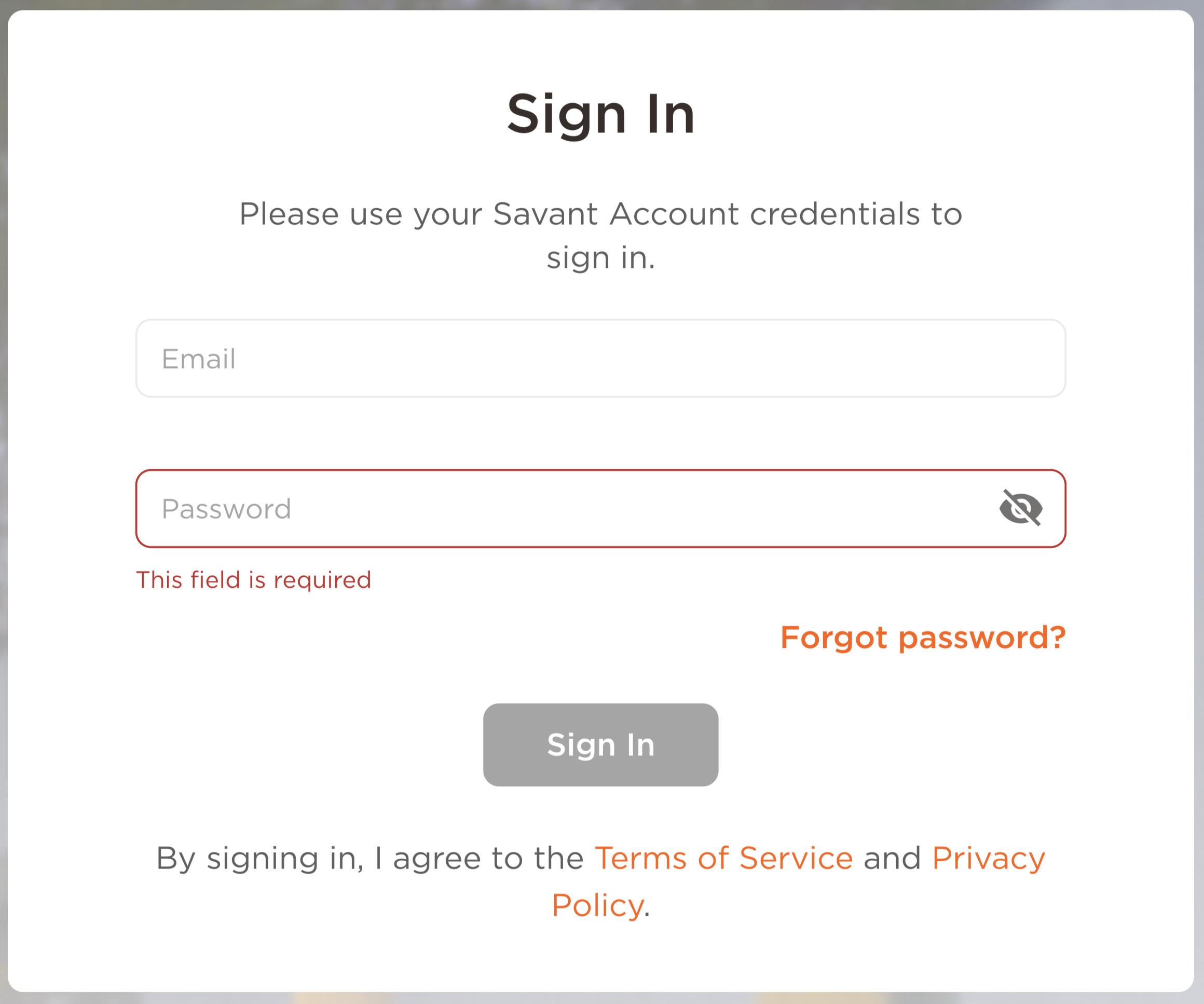
- Enter the Savant Cloud Server (SCS) credentials to log into the SCM web portal. The username and password entered will be the same credentials used to gain access to a Savant Home through the Savant App.
- Select Sign In to access the SCM web portal.
Jobs & Homes Page Overview
The Jobs and Homes page overviews all Jobs and Homes currently accessible to the SCM user, in-depth Power Director status information, monitoring, and remote troubleshooting tools.
The hierarchy on this page carries through to all of SCM and is based on the key elements of Groups, Sub-Groups, Jobs, and Homes.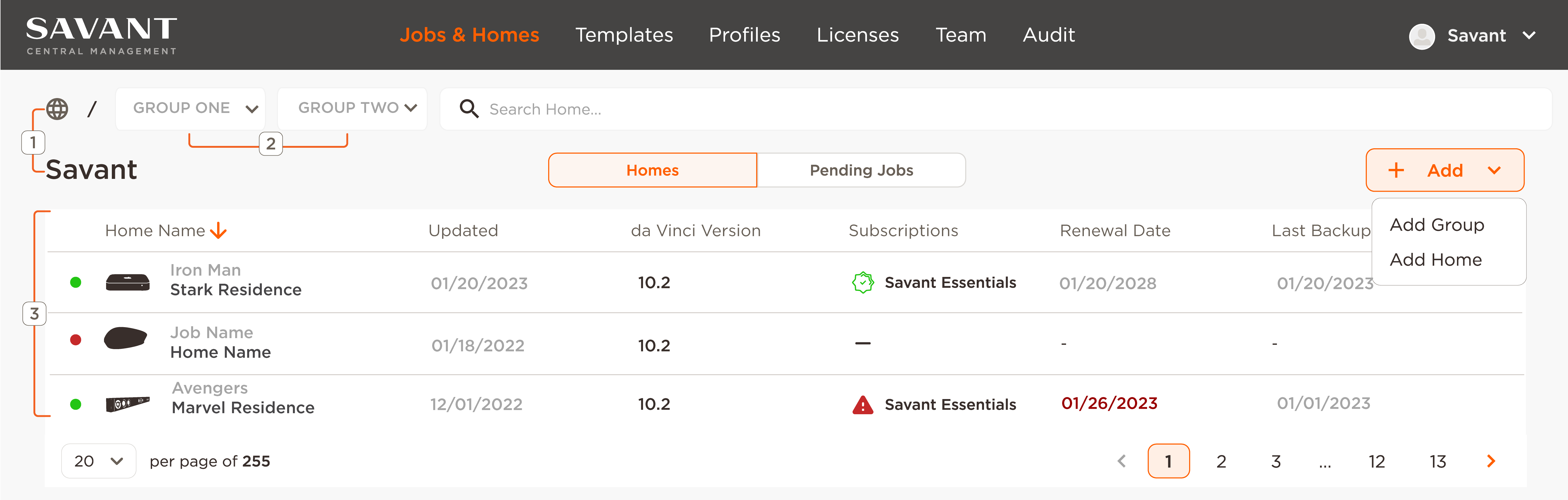
- Groups: The main group, the globe icon, usually represents a company or organization. The main group is created by the Savant Web Services Team. A username and password for the group are given to an administrator of that company or organization. The admin has permission to create sub-groups and Jobs and assign permissions to new users.
- Sub-Groups: The administrator of the main group can create additional sub-groups under the main group, which can be used to further organize Jobs based on clients, location, or other desired parameters. User permissions can be set by the main Group's admin to allow access to only one sub-group if desired. Sub-groups can be nested up to two layers, as shown in the example image above.
- Jobs and Homes: A Job represents one client, site, or installation. At least one Power Director is assigned (claimed) to each Job, with a Power Director being represented within SCM as a Home. Claiming a Power Director is accomplished using SCM. Once claimed, information about that Power Director is made available within SCM under the associated Job and Home. The Jobs table is broken down into the following columns:
- Power Director Status Indicators:
- Green: Online and claimed.
- Gray: Either the Job doesn't have a Power Director assigned to it, or the Power Director assigned to the job is offline.
- Red: The Power Director is assigned to the job but is currently offline.
- Job and Home Name: The Job name is listed first, with the Home name underneath. A Home is the SCM cloud-side representation of a Savant system and is tied to the Savant Power Director on site. Jobs may contain multiple Homes in some cases, such as multi-dwelling units.
- Updated: The date when the da Vinci software version running on the Power Director was last updated.
- da Vinci Version: Current active software release.
- Subscriptions: Current subscription status, active or inactive, and the type of subscription. The red exclamation mark indicates a renewal date within the next three months.
- Renewal Date: The end date for the Home's cumulative total of applied yearly subscriptions. A maximum of five yearly subscriptions can be applied, pushing the renewal date five years ahead.
- Last Backup: Date of the Home's most recent backup to the Savant cloud.
Claiming a Power Director to a Home
This section shows how to add a Home and a Job for the Power Director using the Savant app Claim Code.
IMPORTANT! The Power Director must be deployed and online.
- Open a web browser and navigate to the Savant Central Management login page at https://central.savant.com/login.
If not logged in, enter the username and password. - Select Job & Homes from the navigation bar at the top of the page.

- Change Group if desired.
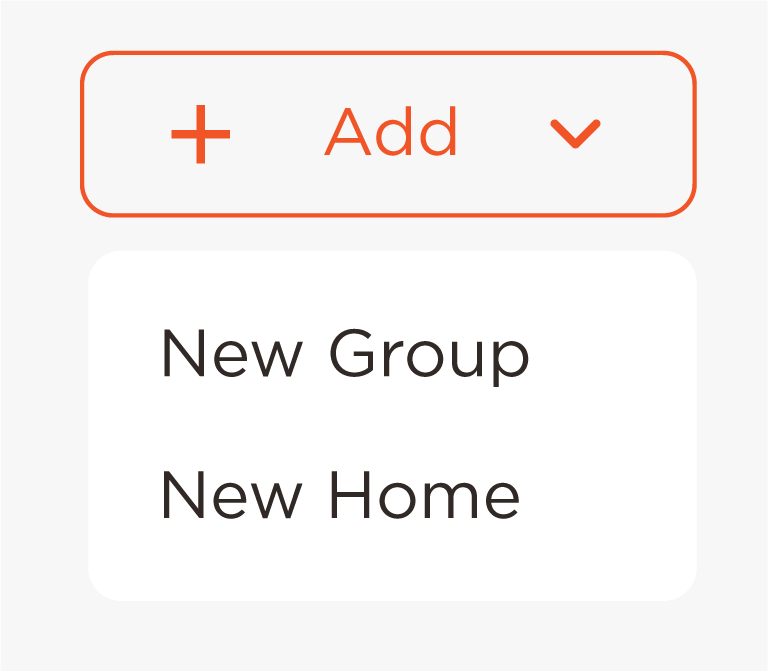
NOTE: This cannot be changed later. - Click + Add.
- Select New Home.
- Enter the Claim Code from a system admin user (refer to the section below).
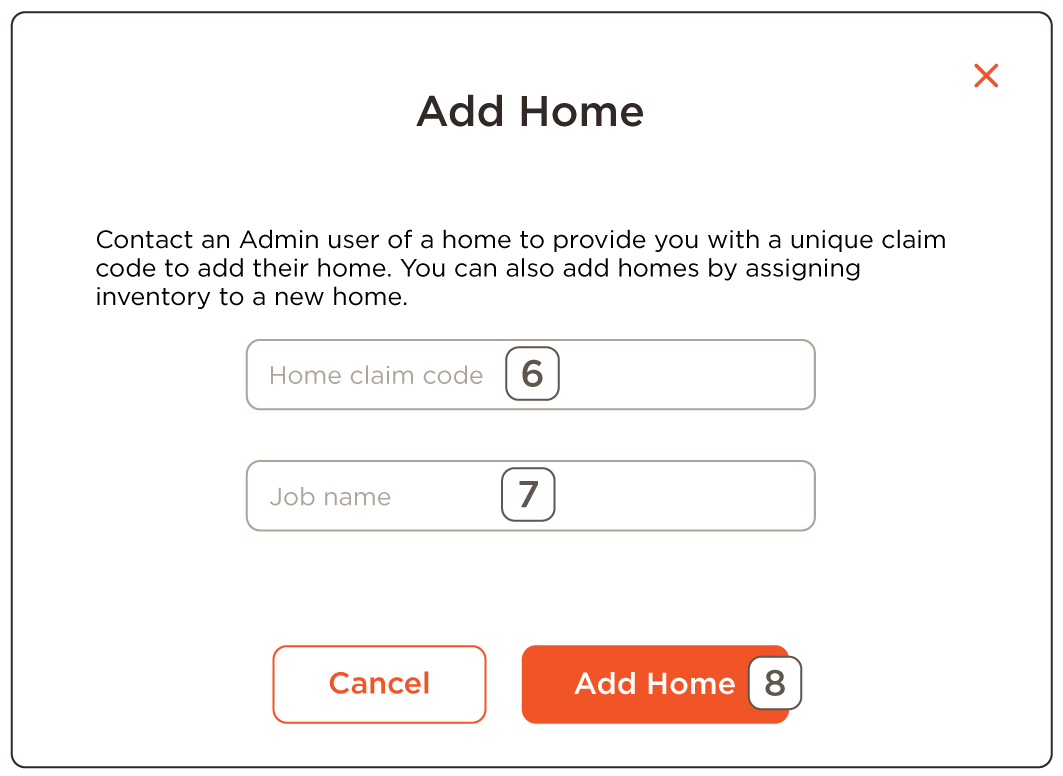
- Enter a Job Name.
- Click Add Home.
IMPORTANT! If the end user selects Remove Dealer from the Savant app > Settings > My Savant Dealer, the Power Director will be removed from SCM, and the claiming processes must be redone.
Savant App Claim Code
This section is included as a reference when giving instructions over the phone to an end user.
|  |
Accessing the Power System and Breaker Panel Tabs
When a Job is selected from the Jobs and Homes page, the Home Status tab is displayed. This tab shows high-level information about the Home. From here, select either Power System or Breaker Panel.
Power System
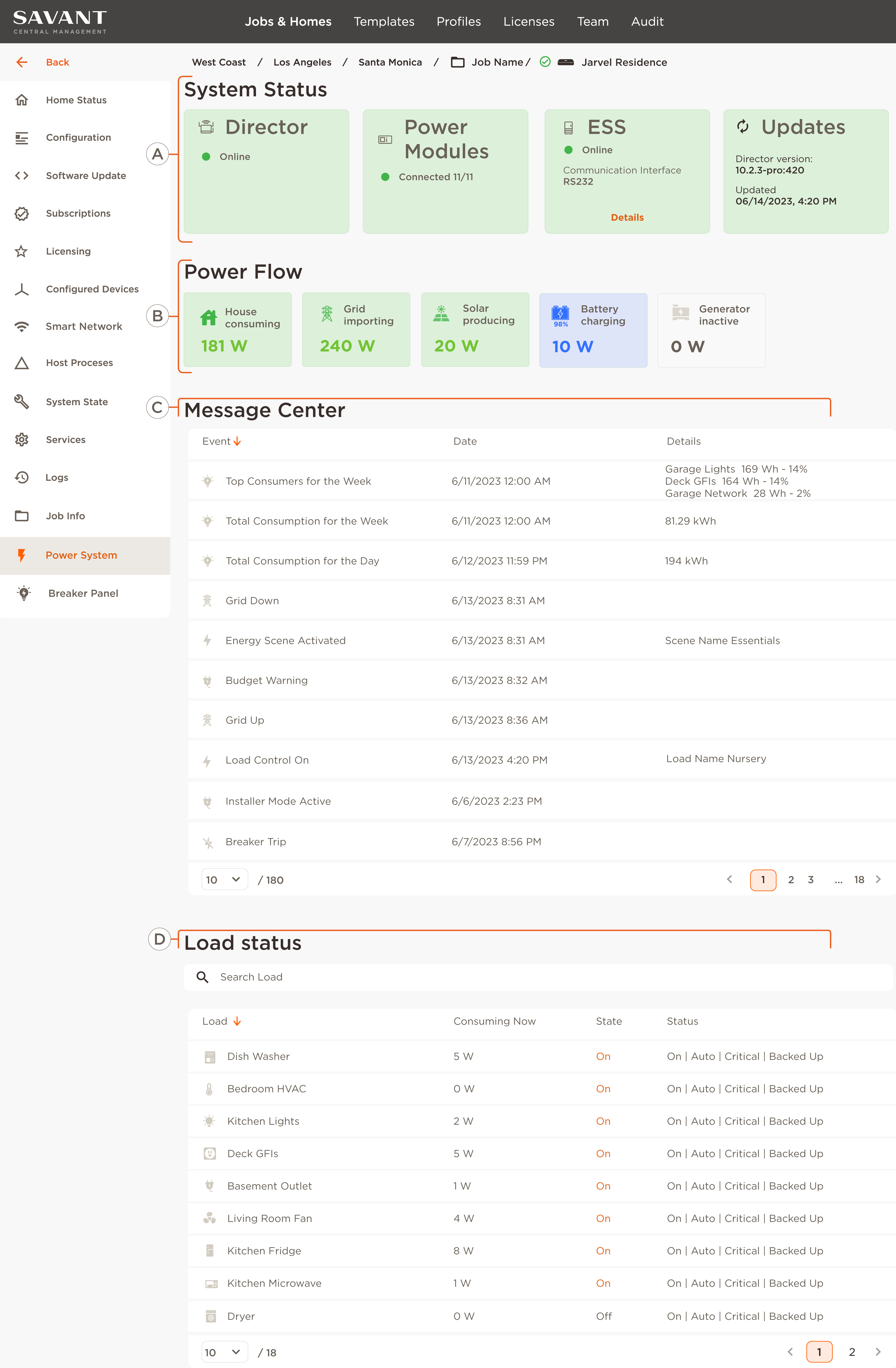
The Power System tab summarizes data from an integrated Savant Power System. Depending on how many of the installed parts comprise the Power System (Energy Monitoring, Energy Control, and Power Source) will determine the information available in this tab.
 HELPFUL INFO HELPFUL INFO |
|
|
The following table outlines all possible states of a complete Power System utilizing energy monitoring, energy control, and power source components. Depending on the components within the Savant Power System will determine the information as described below. | |||
 | System Status | Director | Network connection status of the Power Director. |
| Power Modules | Number of connected Power Modules. | ||
| ESS |
Energy Storage System status. Select Details to open the Device's page for more information. | ||
| Updates | Current Power Director's version and last time updated. | ||
 | Power Flow | House consuming | Current use of power for the entire home. |
| Grid |
Grid exporting: Current amount of power being exported to the grid. Power Outage: Indicates the grid is experiencing a power outage. Grid Inactive: Unable to communicate with the device reporting grid status. Grid Importing: Current amount of power being imported from the grid. | ||
| Solar: |
Solar producing: Amount of power being produced by solar panels. Solar error: An issue has occurred with the panels and should be investigated. Solar inactive: Solar panels not producing power. | ||
| Battery: |
Operating mode and battery power in. Battery charging: Total charge capacity of the battery in %. Battery in use: Battery is being used as a power source. Battery inactive: Battery is not charging. | ||
| Generator: |
Power usage (kW) by the home from the generator. Generator producing: Power produced by the generator. Generator error: An issue has occurred with the generator power source and should be investigated via the Message Center. Generator inactive: Generator power source is not providing any power to the Savant Power System. | ||
 | Message Center | Event | Live view of important messages reported from the Power System. These are the same events seen in the Savant App's Energy Service. |
| Date | Date and time of the event. | ||
| Details | Further information about the event, if available. | ||
 | Load Status | Load | The load's name. Use the search bar to search specific load names. |
|
Consuming Now | The amount of power being used (W) from each load. | ||
| State | The load's current state (On/Off). | ||
| Status |
Auto: The circuit will respond to Energy Scenes and can be manually toggled on/off by the user. Forced On: The circuit is manually set to on and can not be turned off by load control or Scenes. Critical: The circuit will remain on if there is an off-grid event. Non-Critical: The circuit will turn off if there is an off-grid event. Backed Up: The circuit is backed up by a power source and is controllable during an off-grid event. Not Backed Up: The circuit is not backed up by a power source and will be unavailable during an off-grid event. | ||
Breaker Panel Tab
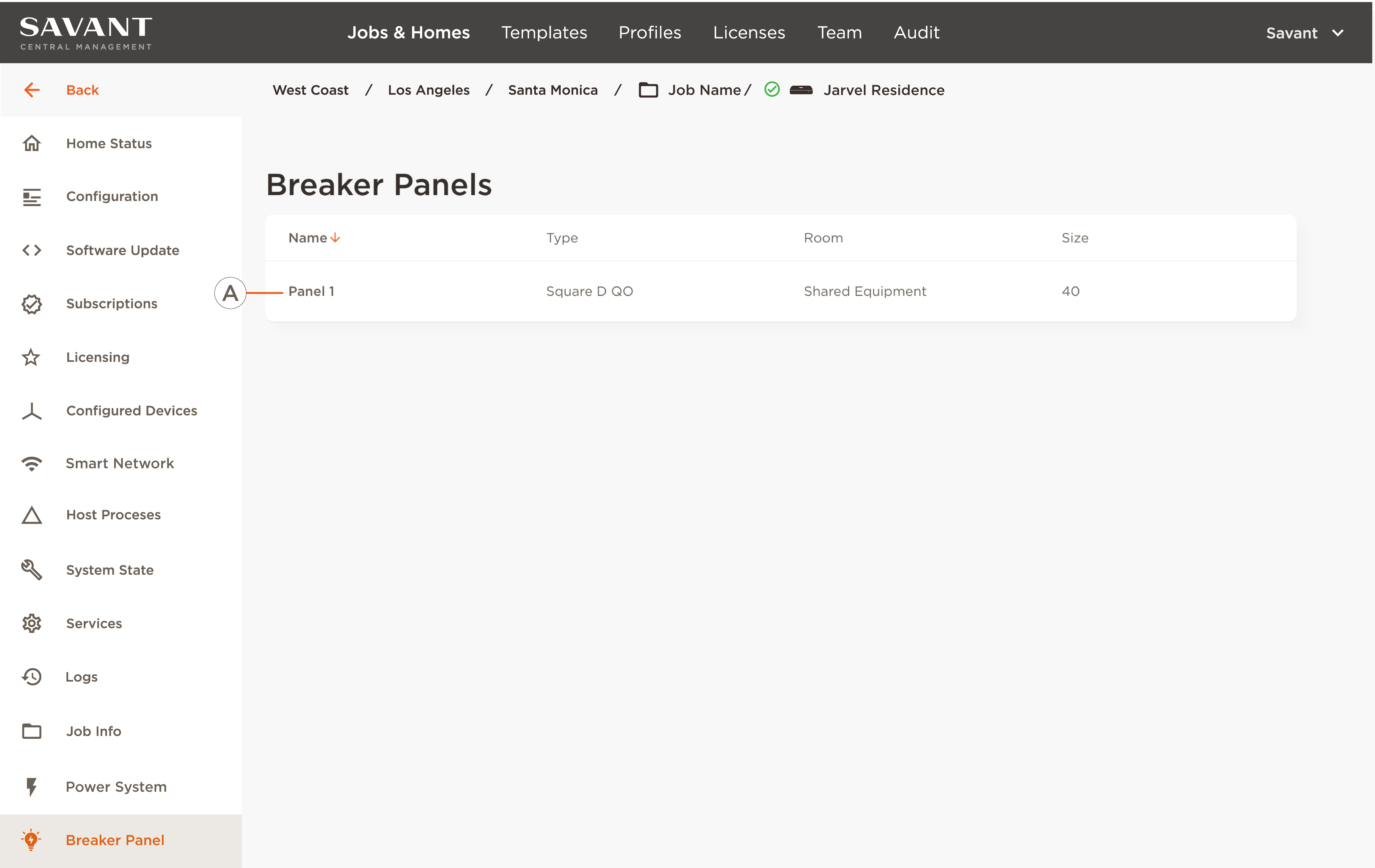
The Breaker Panel tab summarizes data from an integrated Savant Power System's breaker panel, including all configured Savant Power System breaker panels and installed Power Modules.
Select a breaker panel to display the Panel Information page.
|
| ||
| Name | The name of the breaker panel configured within the Savant Power & Light app. |
| Type |
Panel type:
| |
| Room |
The room name of the breaker panel was assigned within the Savant Power & Light app. | |
| Size |
Number of slots within the breaker panel. | |
| ||
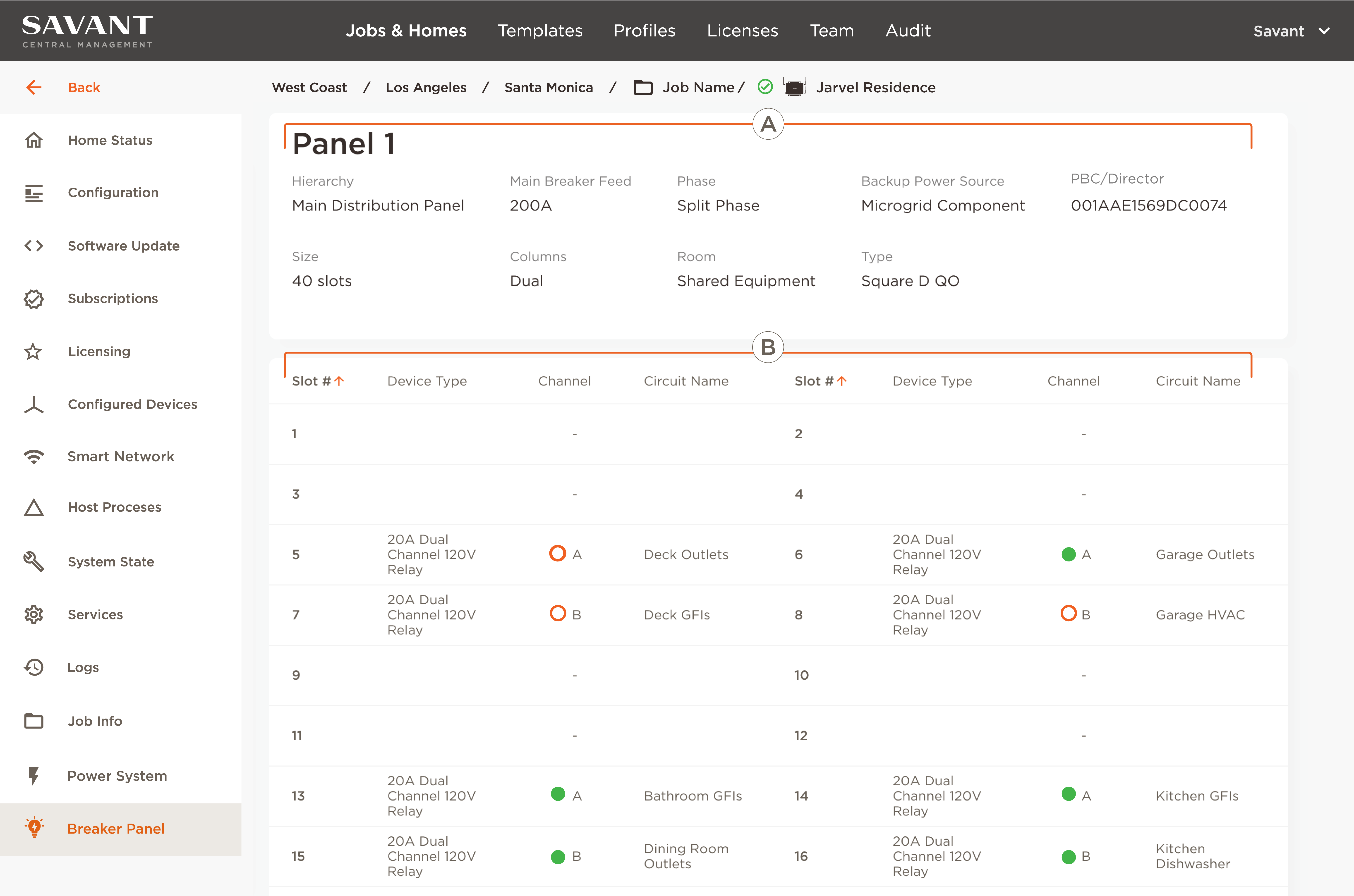
| Hierarchy | Whether the panel is a main distribution panel or a sub-panel. |
| Main Breaker Feed | The number of amps feeding the breaker panel. | |
| Phase |
Split/Single Phase or Three Phase. | |
| Backup Power Source |
The power source, if any, backing up the breaker panel. | |
| PBC/Director | The UID of the PBC or Power Director paired to one or more Power Modules in this breaker panel. | |
| Size | Number of slots within the breaker panel. | |
| Columns | Quantity of columns in the breaker panel. | |
| Room | The room the circuit is represented within the Savant Power System. | |
| Type | User-entered manufacturer of the breaker panel. | |
| Slot # | The slot number the equipment occupies within the breaker panel. |
| Device Type | Description of the installed device. | |
| Channel | Power Module channel occupying the slot. Green/Red = Channel is currently on/off | |
| Circuit Name | Circuit name configured within the Savant Power & Light app. | |
Slot Information | ||
|
| ||
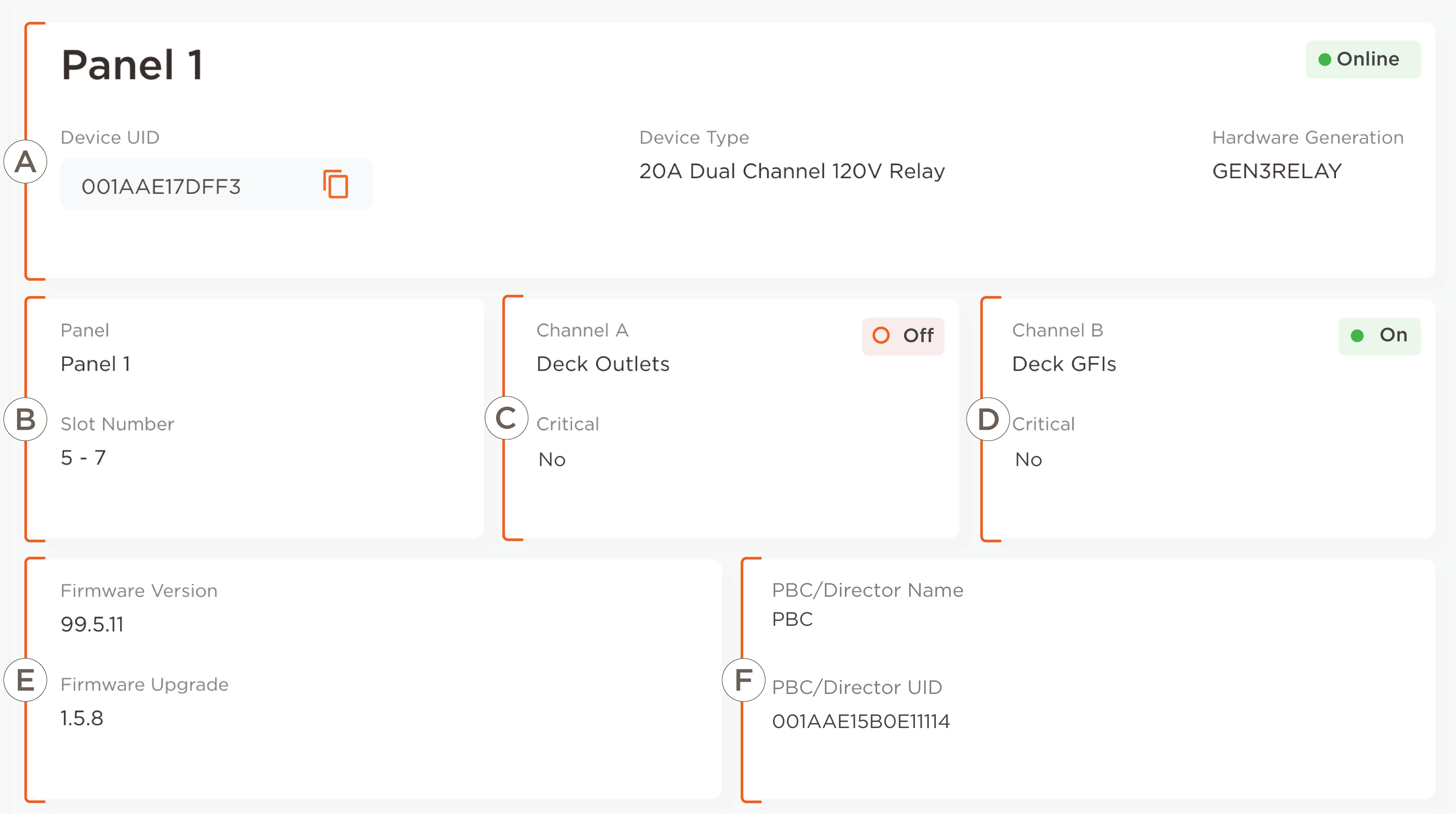
| Panel Name | Name of the panel. In this example, the name is "Panel 1". |
| Device UID |
Power Module UID (Unique Identification) Select the copy icon to copy the UID to the clipboard. | |
| Device Type |
Description of installed Savant Power Module. | |
| Hardware Generation |
Hardware versions of the Savant Power Module hardware | |
| Panel | Name of the breaker panel. |
| Slot Number | Slots/ spaces for the Power Module. In this example, the power module is using slots 5 and 7. | |
| Channel A | The circuit name being controlled |
| Critical | For systems with ESS, a Critical Circuit is a circuit that the system will always provide power in the case of a power outage. This section displays whether the circuit is critical or not. | |
| On/Off Status | Indicates if channel A is currently active or not. | |
| Channel B | The circuit name being controlled. |
| Critical | For systems with ESS, a Critical Circuit is a circuit that the system will always provide power in the case of a power outage. This section displays whether the circuit is critical or not. | |
| On/Off Status | Indicates if channel B is currently active or not. | |
 | Firmware Version | Power Module Firmware. |
| Firmware Upgrade | Status of available updates. | |
 | PBC/Director Name | The PCB/Power Director paired with the Power Module. |
| PBC/Director UID | PBC/Power Director UID (Unique Identification). | |
Configured Devices Tab
The Configured Devices tab displays helpful information for all configured devices, such as the Power Director, generators, ESS, and connected mobile devices.
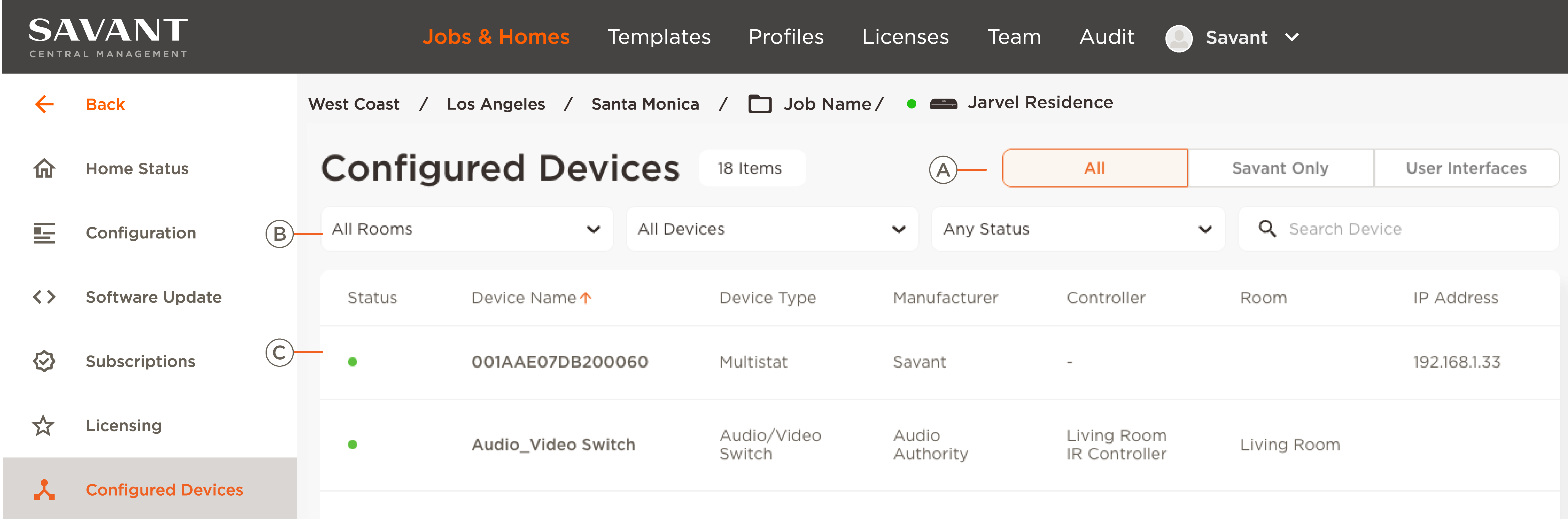 | |
| Select one of the following buttons to filter by All, Savant Only, or User Interfaces. |
| Select the drop-down menus to filter by rooms, device type, and device status. |
| Lists configured devices. Select the column title to filter by ascending or descending order. |