Savant App Lighting Service User Guide - Overview
Document Date: April 2026
Lighting Service Overview
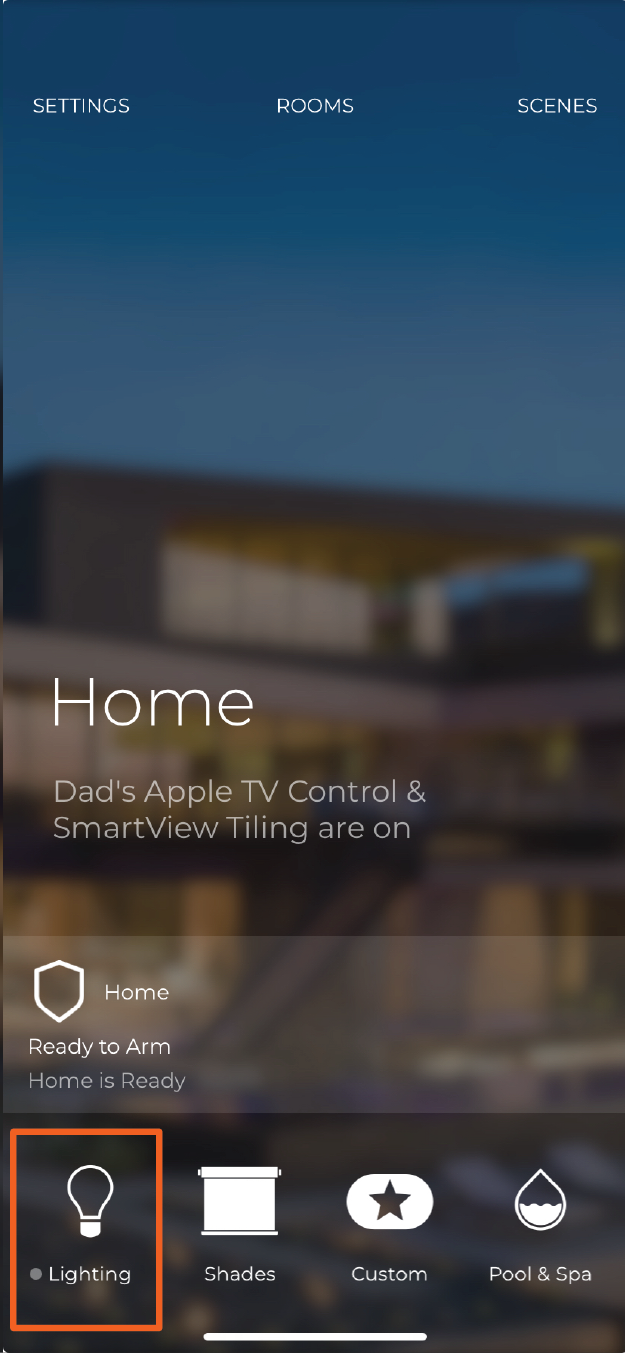
The Savant app allows the user to quickly and easily control configure lighting fixtures within the Savant Home using the Lighting Service. The Lighting Service collects all lighting fixtures into their respective rooms and allows for easy room toggling or fixture color and dimming configuration. This document describes the user experience and general functionality of the Lighting Service within the Savant app. To access the Lighting Service within a room, the user must have account privileges to access to the room. Tap the Lighting Service icon highlighted below to open the Lighting Service.
Lighting Home
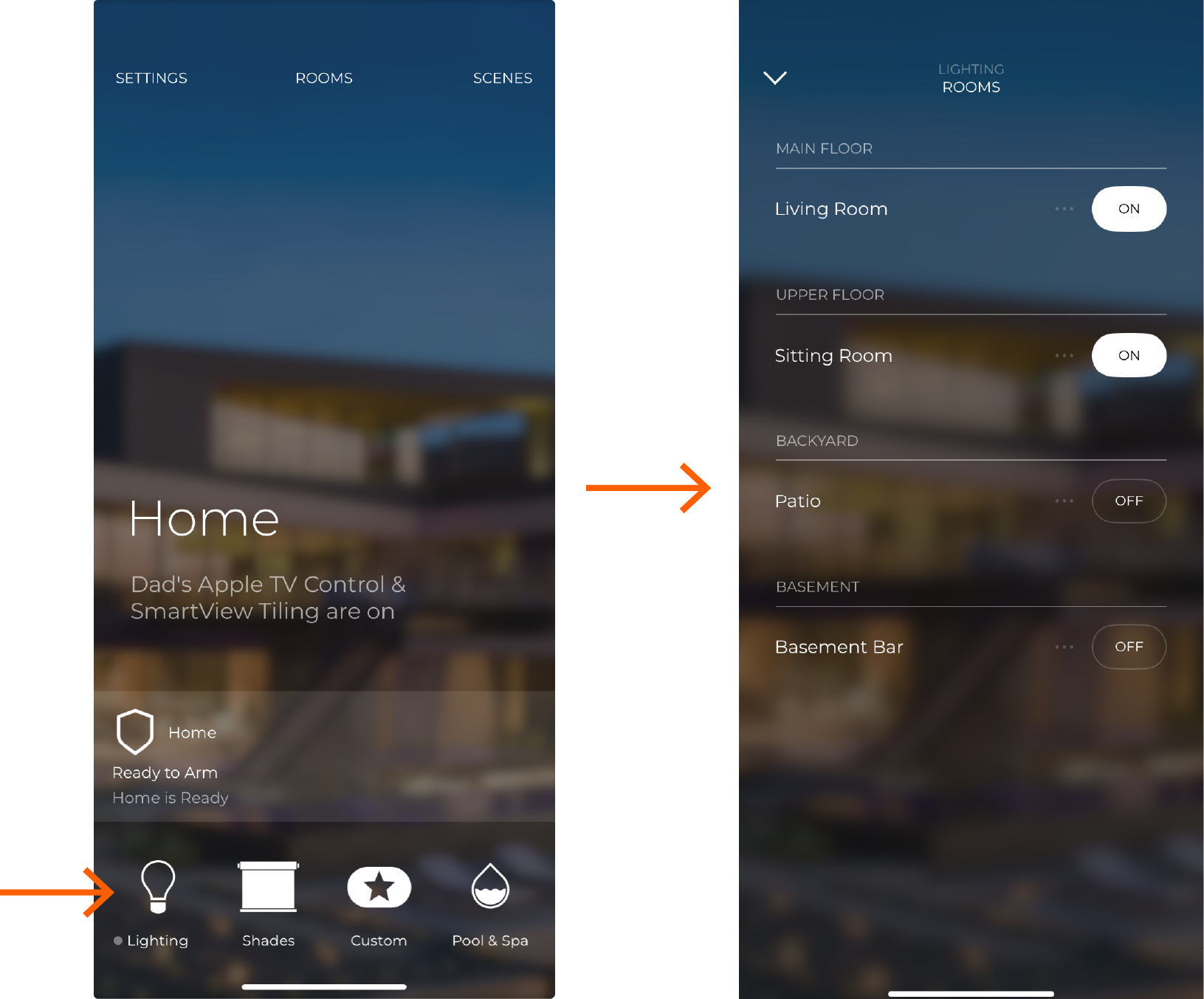
The Lighting Home screen consists of installer configured fixtures displayed as a list. To access the Lighting Home screen, tap the icon in the carousel at the bottom of the Savant app Home screen. The Lighting Home screen lists all rooms with a lighting service enabled.
- Toggle the state of all fixtures within a room ON or OFF by touching the associated ON/OFF toggle.
NOTE: A filled in button indicates atleast one fixture within that room is active - Tap the ... icon to the right of the room to configure the fixtures within the room
- Tap the downward arrow in the upper left to return to the Home screen
Lighting Rooms Screen
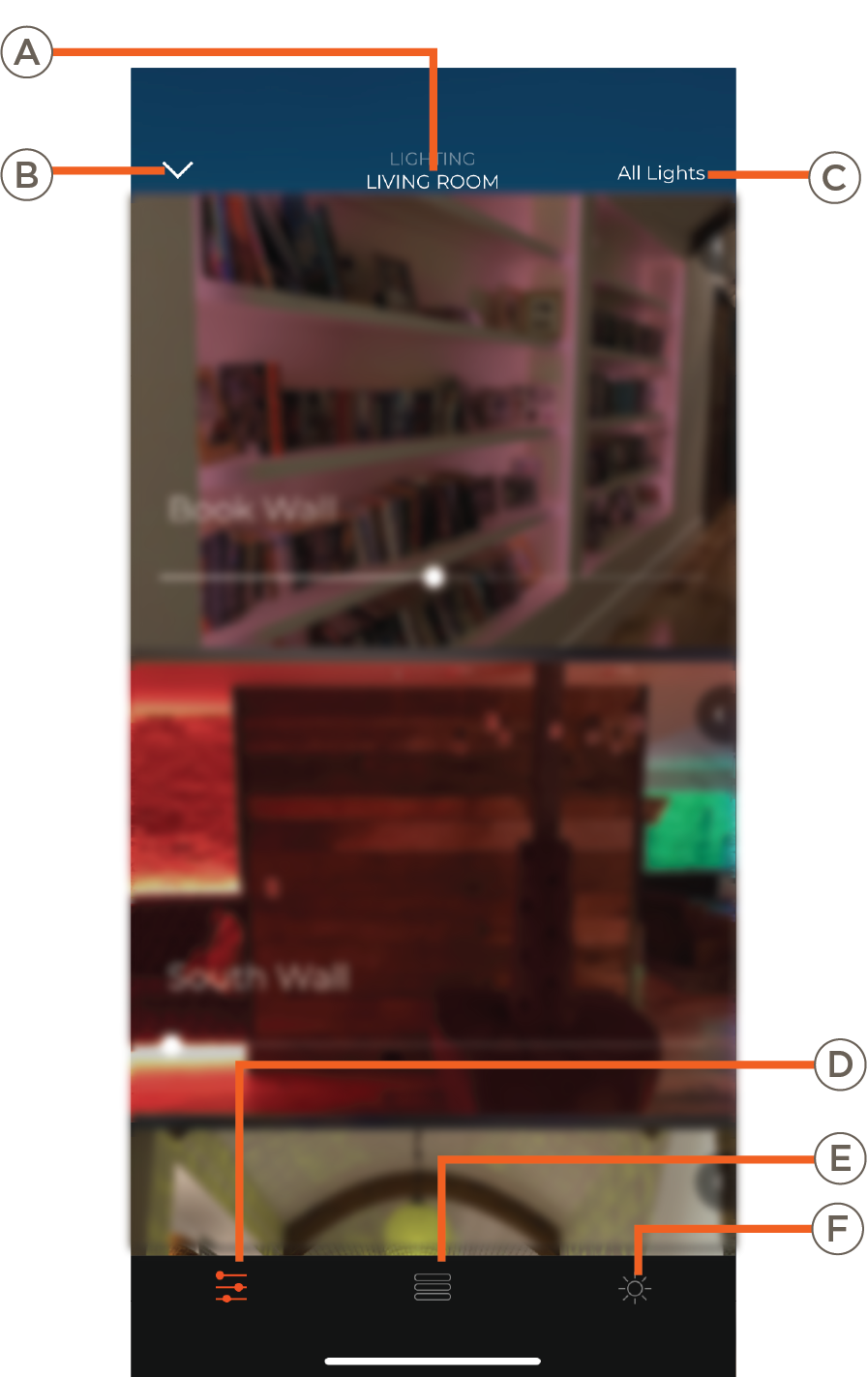
Selecting Open Room (...) from the Lighting Home screen opens the Lighting Room view for the selected room. This displays the selected room and each fixture within it. It is divided into two sections: Lighting Room Dock and Lighting Room View. The Lighting Room Dock controls the Lighting Room View.
NOTES:
- The Lighting Room screen can also be accessed directly by tapping Rooms or swiping down on the Home screen and then selecting the lighting service within a room
- For information on particular aspects of different the Lighting Room view, see the applicable User Guide
Lighting Room Dock