Savant App Service User Guide - Lighting Scenes
Document Date: April 2026
Overview
This document describes the functionality of Lighting Scenes within the Savant app. To open the Lighting Scenes screen, tap the  icon shown in the Lighting Room Dock of any Lighting Control Screen. The Lighting Scenes screen displays all installer-configured lighting scenes that include lights located in the selected room. Lighting Scenes can be toggled on or off by tapping the corresponding button, and currently active scenes are highlighted as shown in the image below.
 IMPORTANT!: The Lighting Scenes displayed on this screen are installer configured Lighting-only Scenes, and are different from User-created Savant app Scenes. User Scenes can include lighting control for supported lights, but will not be displayed on this screen, and will not cause the Lighting Scenes screen to appear for configured rooms that do not contain any installer-configured Lighting Scenes.
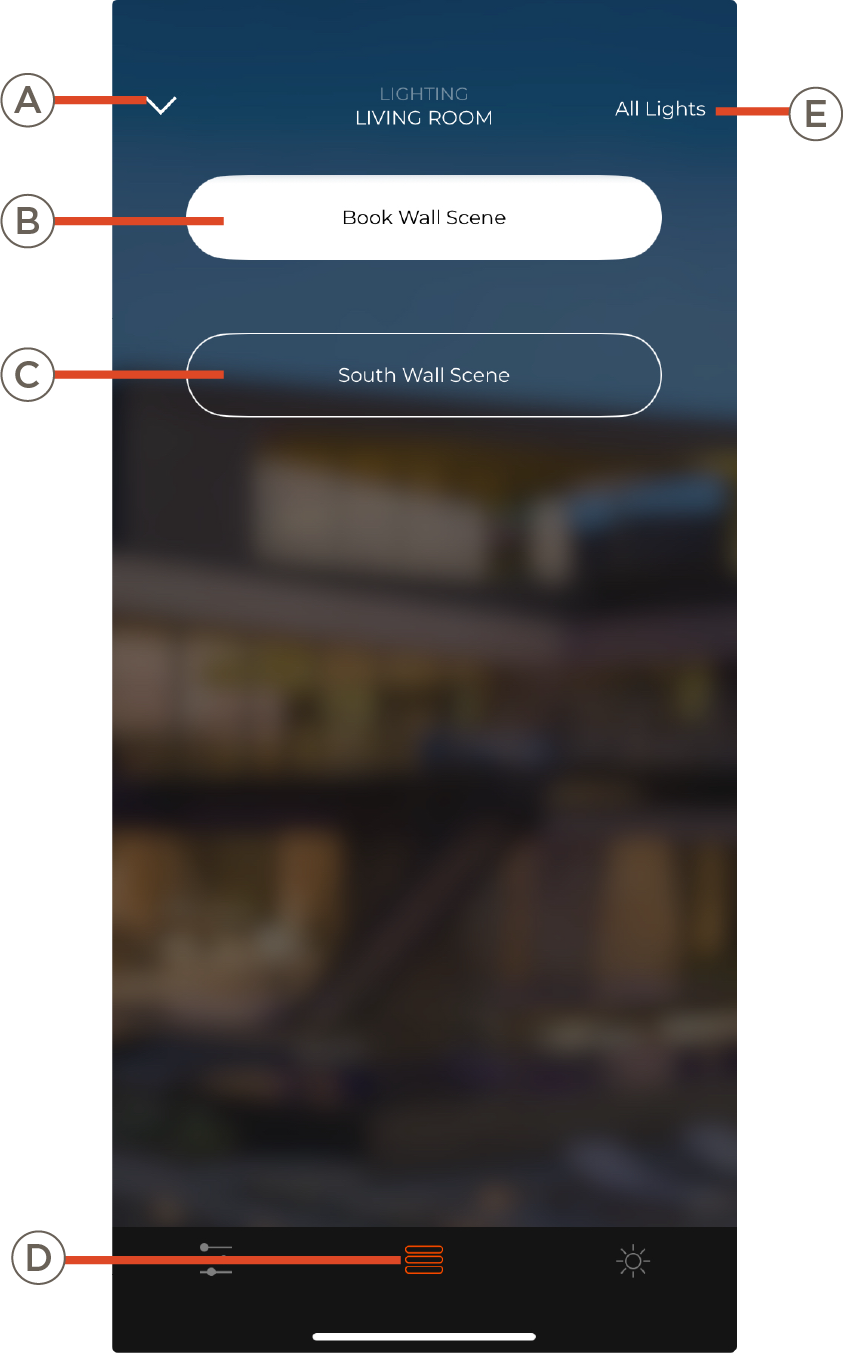
| A | Dismiss the Lighting Service dialogue and return to previous screen (Lighting Home or Room view) |
| B | Active Lighting Scene. Tap to deactivate and return lighting elements to their previous settings, or select a non-active Lighting Scene to switch |
| C | Non-active Lighting Scenes. Tap to activate |
| D |
Tap to select another Lighting Control Screen. Only icons for screens supported by the Lighting configuration in the current Room will appear
|
| E | Tap to go to the Lighting Home screen for global control of all rooms with Lighting enabled |
