Savant App Lighting Service User Guide - Global Room Control
Document Date: April 2026
Overview
This document describes the functionality of global room control within the Savant app Lighting service. Tap the  icon the dock at the bottom of any Lighting Control Screen to open the Global Room Control screen. This screen presents options for control of all configured lights within the selected room. Refer to the image and table below for details on each option presented on this screen:
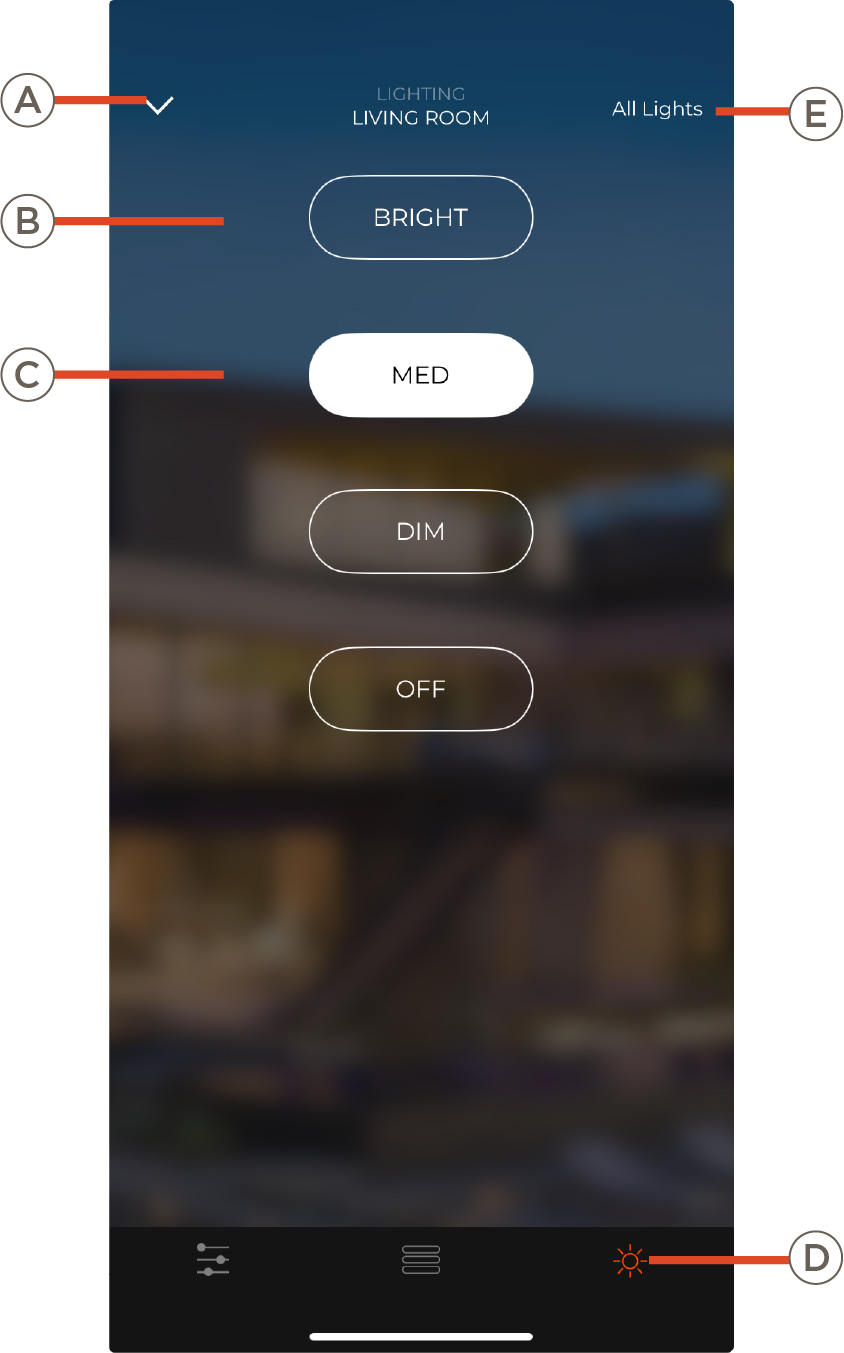
| A | Dismiss the Lighting Service dialogue and return to previous screen (Home or Room view). |
| B |
Select an option to control all configured lighting in the room:
- BRIGHT - sets all dimmers to 100%, and all switches to on.
- MID - sets all dimmers to 60% and all switches to on.
- DIM - sets all dimmers to 30% and all switches to off.
- OFF - sets all dimmers to 0% and all switches off.
NOTE: For Rooms with no dimmable lighting (On/Off switch controlled lights only), this screen will show only an ON and an OFF button for global control of all switches
|
| C | Global Room Control icon. Tap a different icon to select another Lighting Control screen. Only icons for screens supported by the Lighting configuration in the current Room will appear |
| D | Tap to go to the Lighting Home screen for global control of all rooms with Lighting enabled |
