Lighting Service User Guide - Daylight Mode
Document Date: February 2026
Overview
This document describes the functionality of Daylight Mode within the Lighting Service of the Savant app. Daylight Mode allows users to match Savant Lighting to the natural lighting conditions in their area. This creates a scenic, charming atmosphere automatically and can easily be configured by the user. Follow the sections below to configure a Daylight Mode curve.
 IMPORTANT!: Third party lighting controllers are not supported.
Configure Daylight Mode
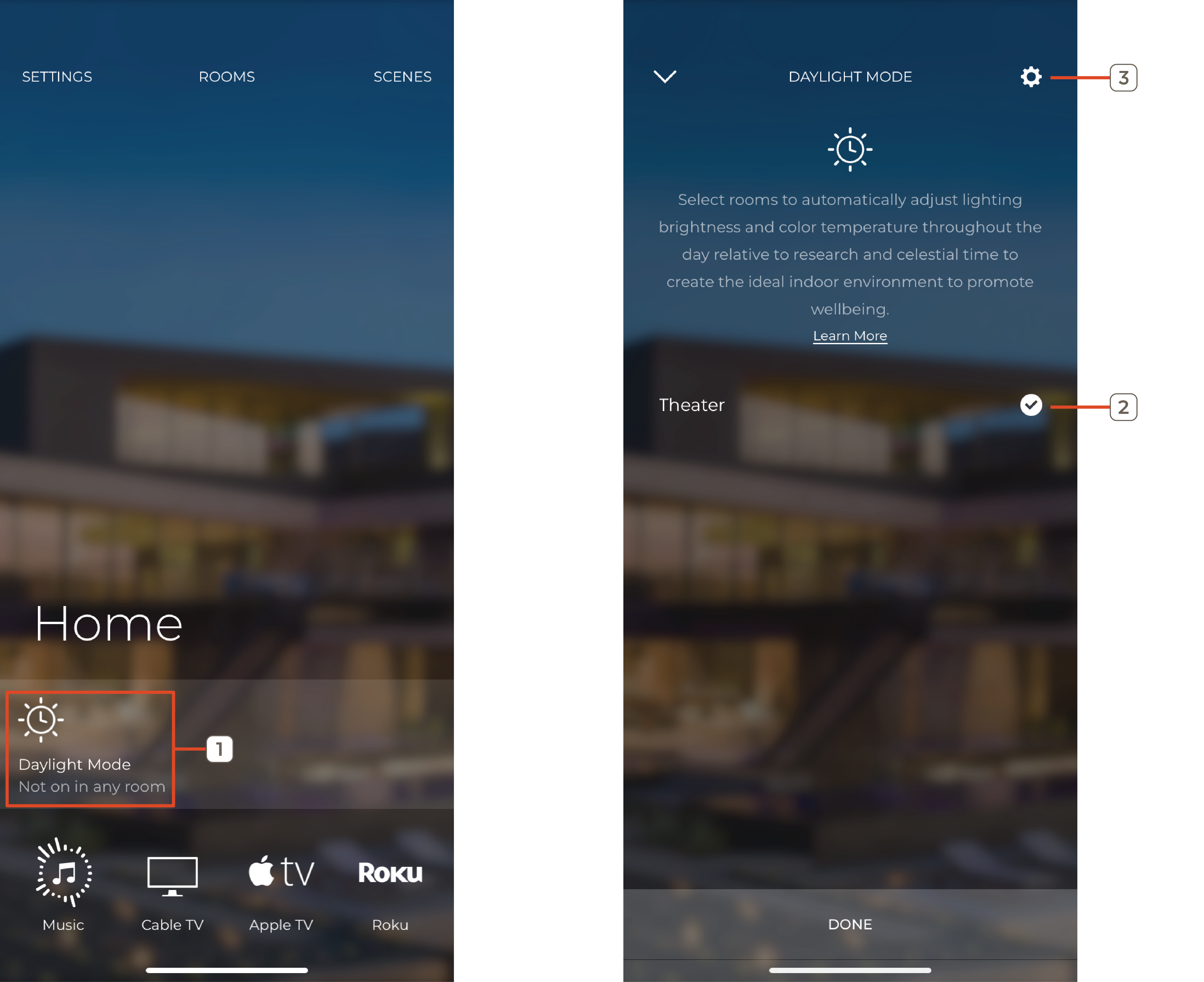
Select the Daylight Mode icon from the Daylight Mode Banner, the Lighting Service, or Settings > Mode Settings > Daylight Mode. To begin the process of creating a Daylight Mode curve, complete the following:
NOTE: The Home screen Daylight Mode banner offers a quick view of which rooms are following the Daylight Mode curve.
- From the Daylight Mode service screen, select which rooms will have its lights follow the Daylight Mode curve. By default, Daylight Mode is disabled in all rooms
NOTE: As each room is selected, the lights set up to follow the Daylight Mode curve will toggle ON - Select the rooms to adhere to Daylight Mode here.
- Touch the gear icon to configure the Daylight Mode curve.
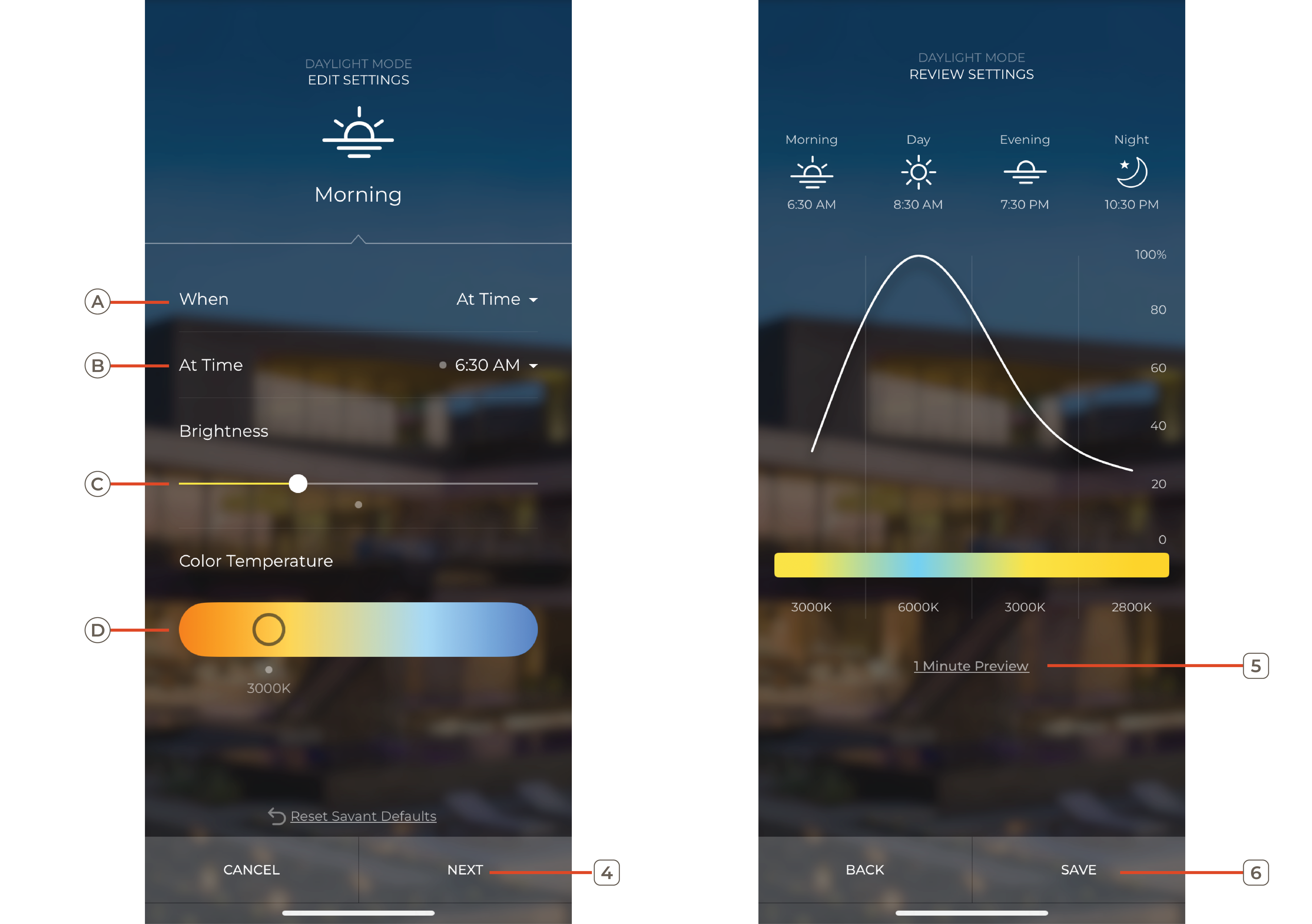
- The process leads the user through four separate screens (Morning, Day, Evening, and Night) and allows the user to set the brightness and temperature for each light at different times of the day. Tap Next when each phase is complete.
- When - Whether the selected stage of Daylight Mode occurs at a specific time or relative to the time of day.
- At Time - What specific time or time of day Daylight Mode enters this phase.
- Brightness - How bright the fixture is during this phase of Daylight Mode.
- Temperature - The temperature of the light during this phase of Daylight Mode.
NOTE: To revert current Daylight Mode phase changes to defaults, tap Reset to Savant Default.
- Touch 1 Minute Preview to show a demo of the currently configured Daylight Mode curve. The preview simulates how Daylight Mode functions throughout the day.
- Select Save when satisfied the curve is sufficient. Selected fixtures will begin to follow the Daylight Mode curve.
IMPORTANT NOTE!: After saving the Daylight Mode curve, the Savant app will asks whether a Scene to toggle Daylight Mode On and Off should be created. Select Yes to create the scene, . Select No I’m Done if no scene is desired. Lights can be configured to follow or not Daylight Mode can be added to a Scene. Once created, the Scene can toggle Daylight Mode on or off. For more information on Scenes, see the Savant App User Guide - Scenes.
Daylight Mode User Interactions
With a Daylight Mode curve configured, selected rooms, smart groups, or individual lights configured will follow the curve. However, interactions such as changing temperature or brightness of one or more lights can have an effect on whether the Daylight Mode will continue or be stopped:
- Changing the temperature or color of any load following Daylight Mode causes all lights in the room to disengage from Daylight Mode. All other rooms will remain unaffected
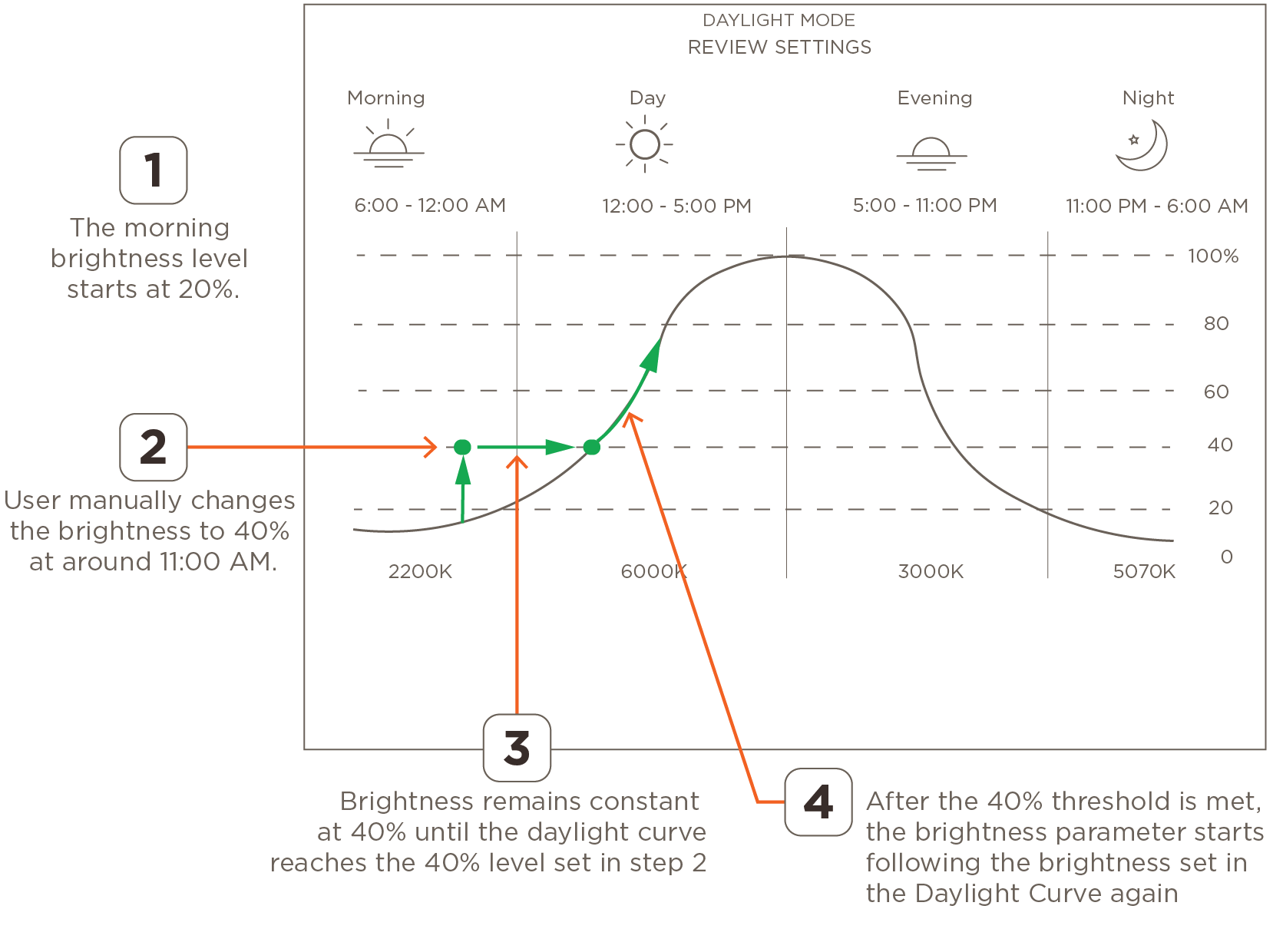
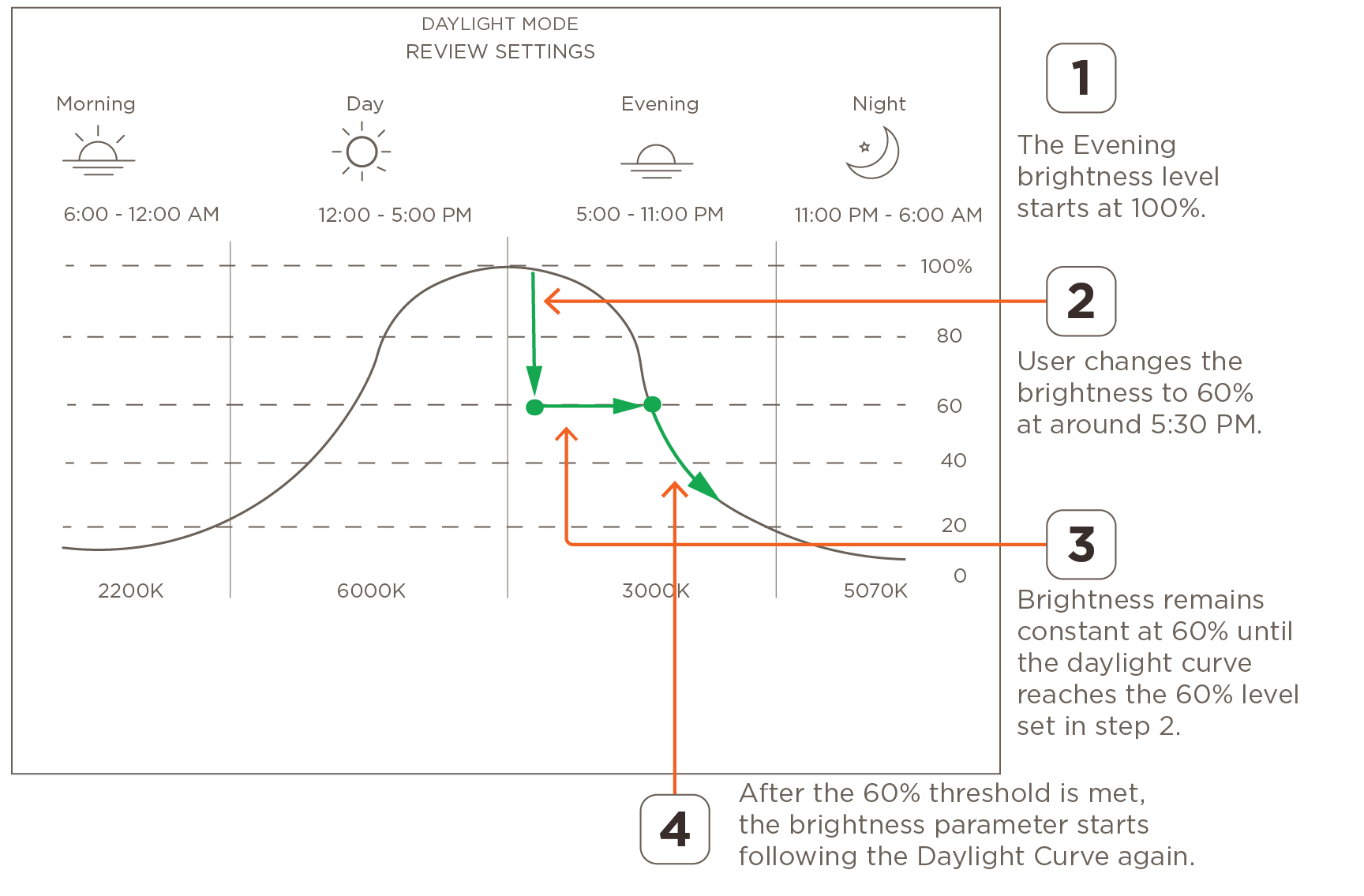
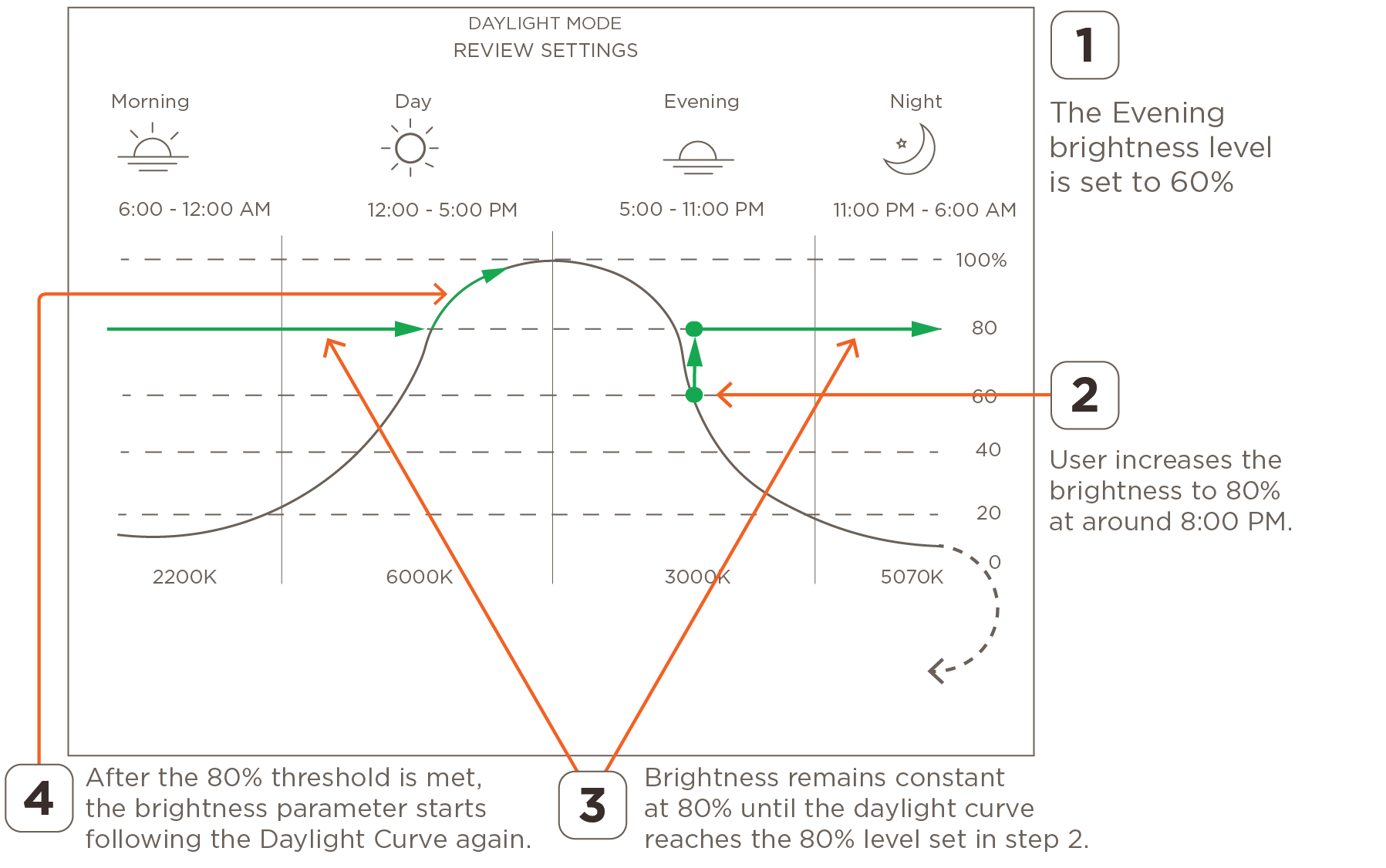
- After changes are made to the brightness of any light, the updated level of brightness remains constant until the level set in the Daylight Mode curve exceeds the manually changed level. This occurs whether the changes made are higher or lower than the brightness set in the curve. Below are a few examples: