Savant Intercom Service & Paging Interface Reference Guide - Savant App
Document Date: June 2026
Description
The Intercom Service allows users to easily communicate between User Interfaces (UI) within the Savant app. It can be accessed by a Savant app Cloud User with access to the Savant System that has two or more UIs.
Supported User Interfaces
- iPhone & Android devices running the Savant app.
- NOTE: Tablets are not supported.
- Savant Touch 10.1 Inch Control Screen (ITP-E10100V3x)
- Savant Touch 8 Inch Control Screen (ITP-E8000x-20 or newer.)
- Savant Touch 5.5 Inch Control Screen (ITP-E5500x-20 or newer.)
- Savant Intercom Paging Interface (SIPI-1000-xx, Endpoint only.)
Intercom Service
The Intercom Service can be accessed from the Service carousel on the Home screen in the Savant app.
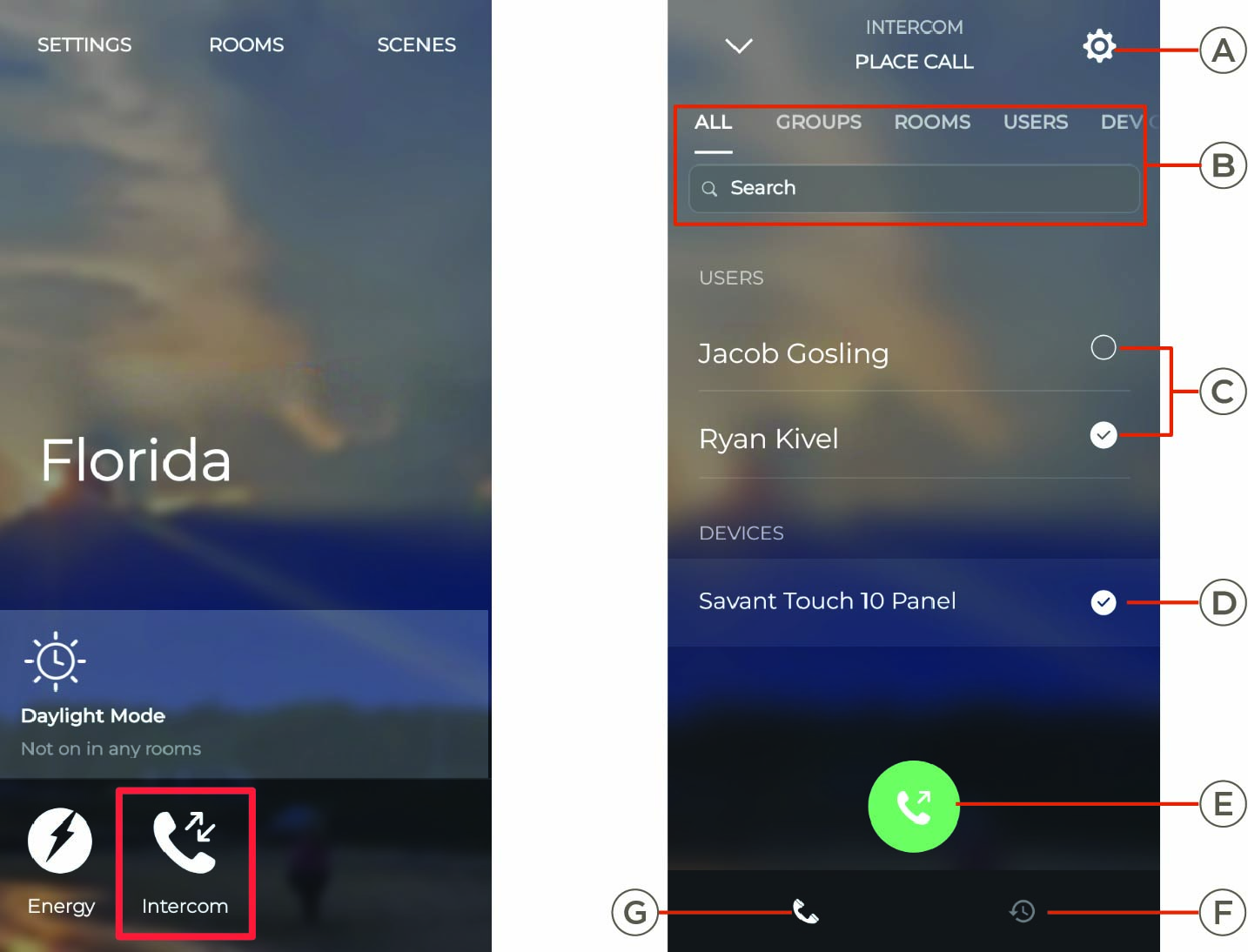
| A | Settings | Tap to access Intercom Service Settings, including creating Call Groups. |
| B | Search | Search for User Interfaces by type or use the text box to search by name. |
| C | Users | Users available to call with the Intercom Service. Tap a user to select them to be called. |
| D | Devices | Savant UIs available to call with the Intercom Service. Select to add the list of devices to be called. |
| E | Call Selected User Interfaces | Tap the green phone icon to call all selected devices and UIs simultaneously. |
| F | Recently Called | Access recently called devices and User Interfaces in chronological order. |
| G | Call | Make calls from the Intercom Service Screen |
Intercom Settings
Intercom Settings affect how the Intercom Service functions upon making or recieving a call.
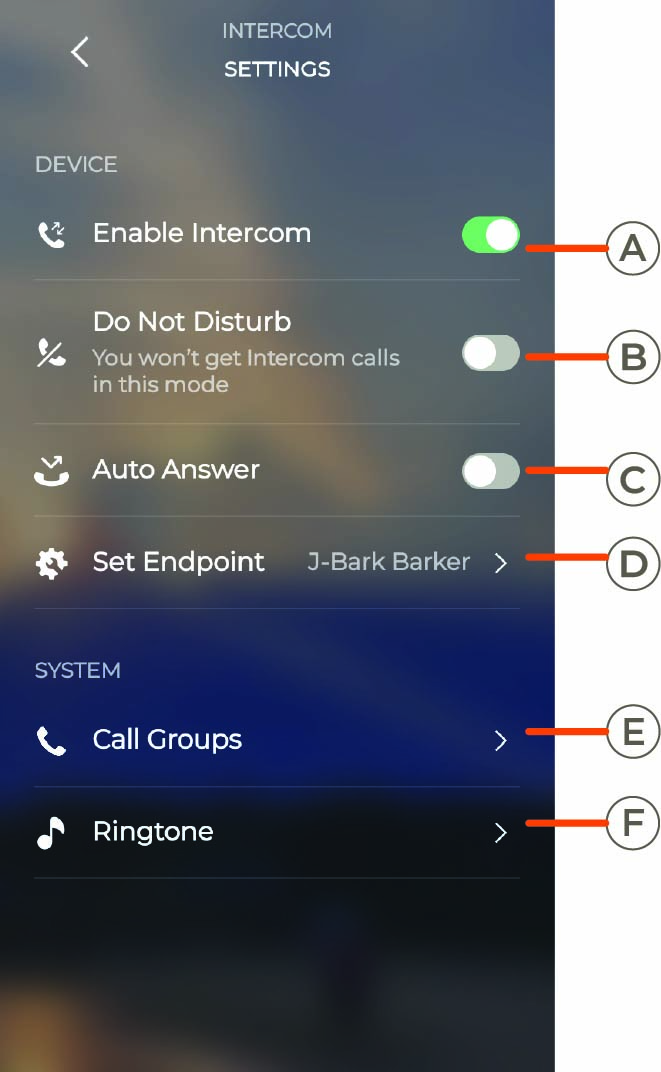
| A | Enable Intercom | Toggle to enable the Intercom Service on this device. |
| B | Do Not Disturb | Enable to automatically reject and not recieve notifications for Intercom calls. |
| C | Auto-Answer | Enable to automatically answer and switch to the Intercom Service on this device. |
| D | Set Endpoint |
Choose which endpoint will output the audio from a call recieved through this device.
Example: A Savant Intercom Paging Interface can be installed to output Intercom call audio to a speaker instead of device audio.
|
| E | Call Groups | Create or Edit Call Groups. See Create Call Groups below. |
| F | Ringtone | Choose which audio file will be played when this device accepts a call over the Intercom Service. |
Create Call Groups
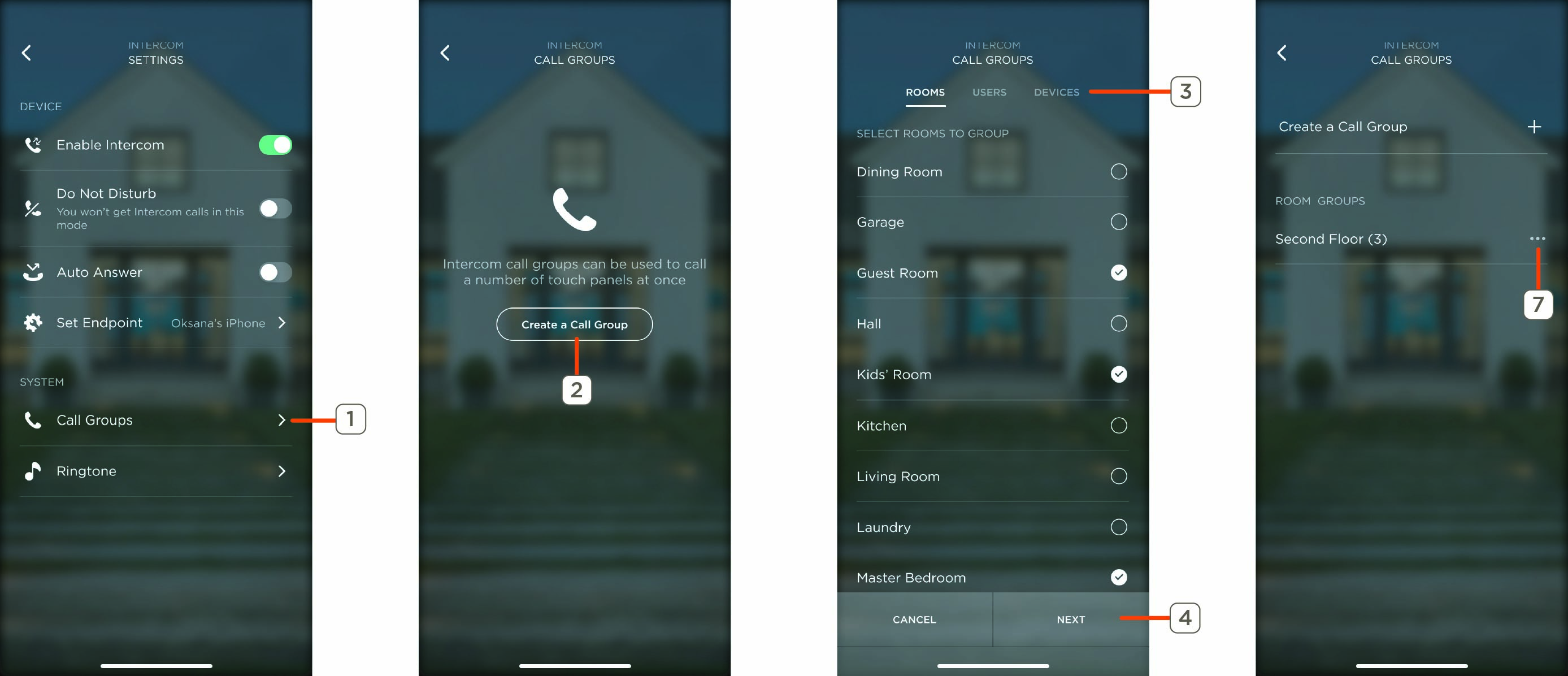
Call groups are users and UIs called at the same time by selecting the Call Group in the Intercom Service. This allow for easy communication between commonly used Savant UIs within a Savant System.
- Select Intercom Settings > Call Group.
- Choose Create a Call Group.
- Check the Rooms, Users, and/or Devices to be added to the Call Group.
- Click Next.
- Name the Call Group.
- Select Done. This will save the newly created Call Group for devices to call.
NOTE: Select the ellipses next to the name of the Call Group to Edit or Delete.