Savant Load Management with Tesla Powerwall - Supplemental Integration Guide
| Document Date: | February 2026 |
| Document Supports: | Savant OS 11.1 and higher SP&L Version 3.3 and higher |
Overview
This guide acts as a supplemental integration guide for Savant Power Systems with a Tesla Powerwall and includes wiring instructions and configuration steps in the SP&L app.
Wiring
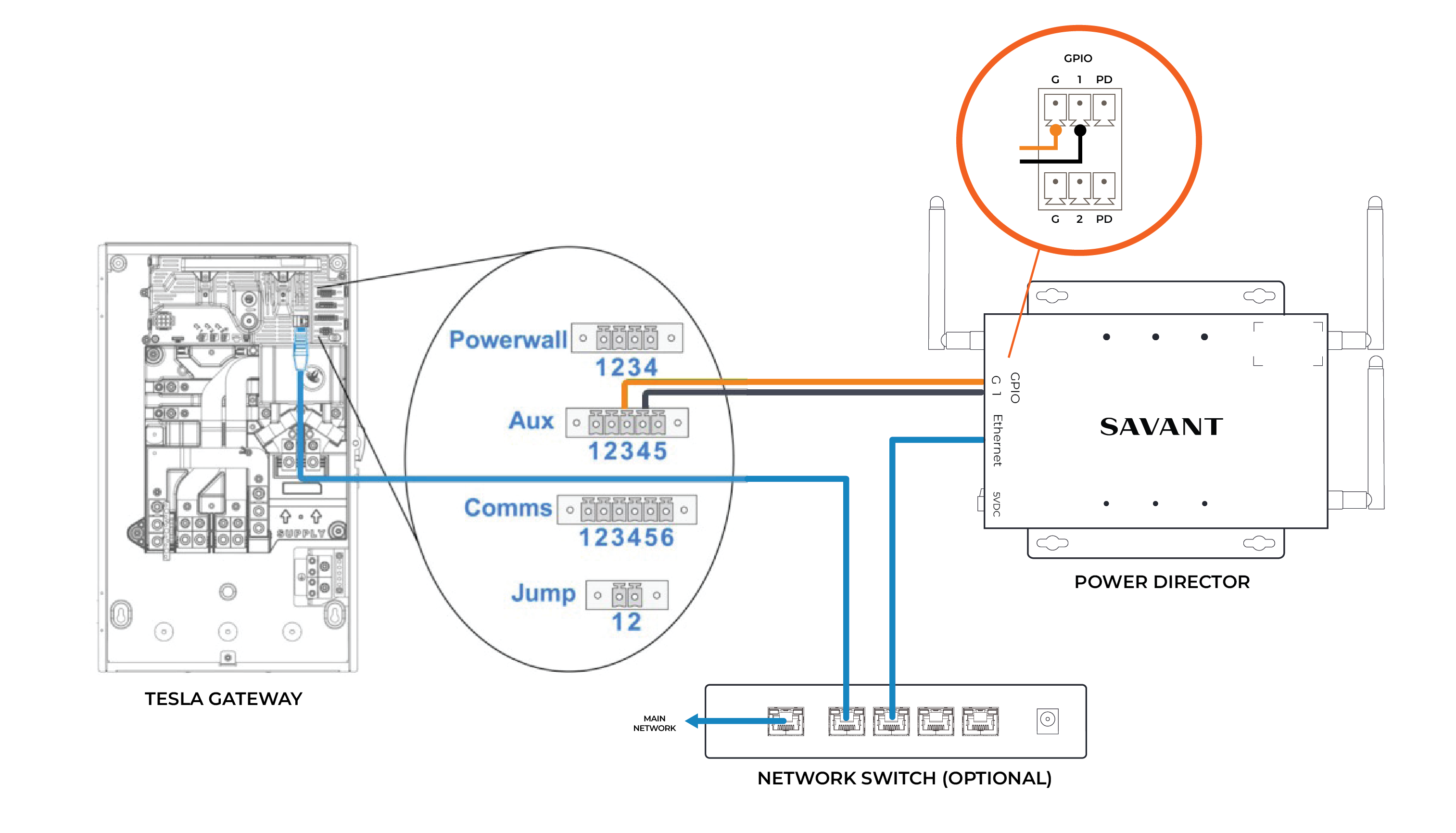
Wiring with a Tesla Powerwall 2
The Savant Power Director and Tesla Powerwall 2 is connected via Ethernet cable or Wi-Fi and must be on the same network. Savant recommends running a single pair black and red wire size #18-16 AWG from auxiliary pins 3 and 4 on the Tesla Gateway to the GPIO 1 connection port of the Director. The GPIO is used to monitor Grid State and recommended when using off-grid load shedding relay. The detection of grid changes by the Director is faster than the Ethernet connection when using the GPIO. However, GPIO connections are not required for the Director to function. See the diagram below.
Wiring with a Tesla Powerwall 3
The Savant Power Director and Tesla Powerwall 3 is connected via Ethernet cable or Wi-Fi and must be on the same network. If the installation includes a Tesla Gateway 2 run a single pair black and red wire size #18-16 AWG from the auxiliary pins 3 and 4 on the Gateway to the GPIO 1 connection port of the Director. The GPIO is used to monitor Grid State and recommended when using off-grid load shedding relay. The detection of grid changes by the Director is faster than the Ethernet connection when using the GPIO. However, GPIO connections are not required for the Director to function. See the diagram below.
NOTE: The Tesla Powerwall 3 requires a Backup Switch or Gateway 2. If the installation is using the Backup Switch the GPIO wiring is not used.
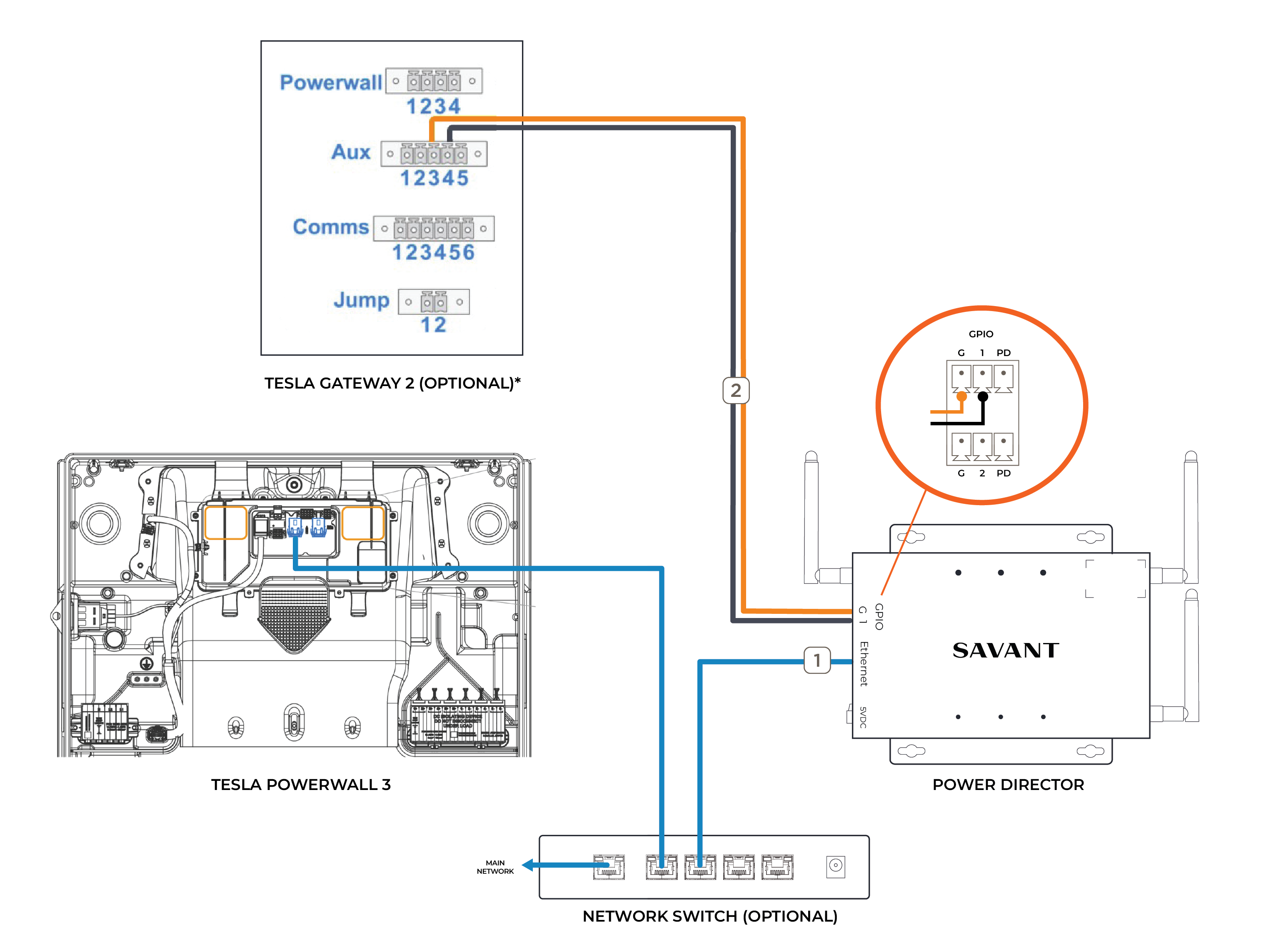
*As of the release of this document, the Tesla Powerwall 3 does not support GPIO connection to the Tesla Gateway 2. This is planned for a future release by Tesla.
Wiring with a Tesla Powerwall+
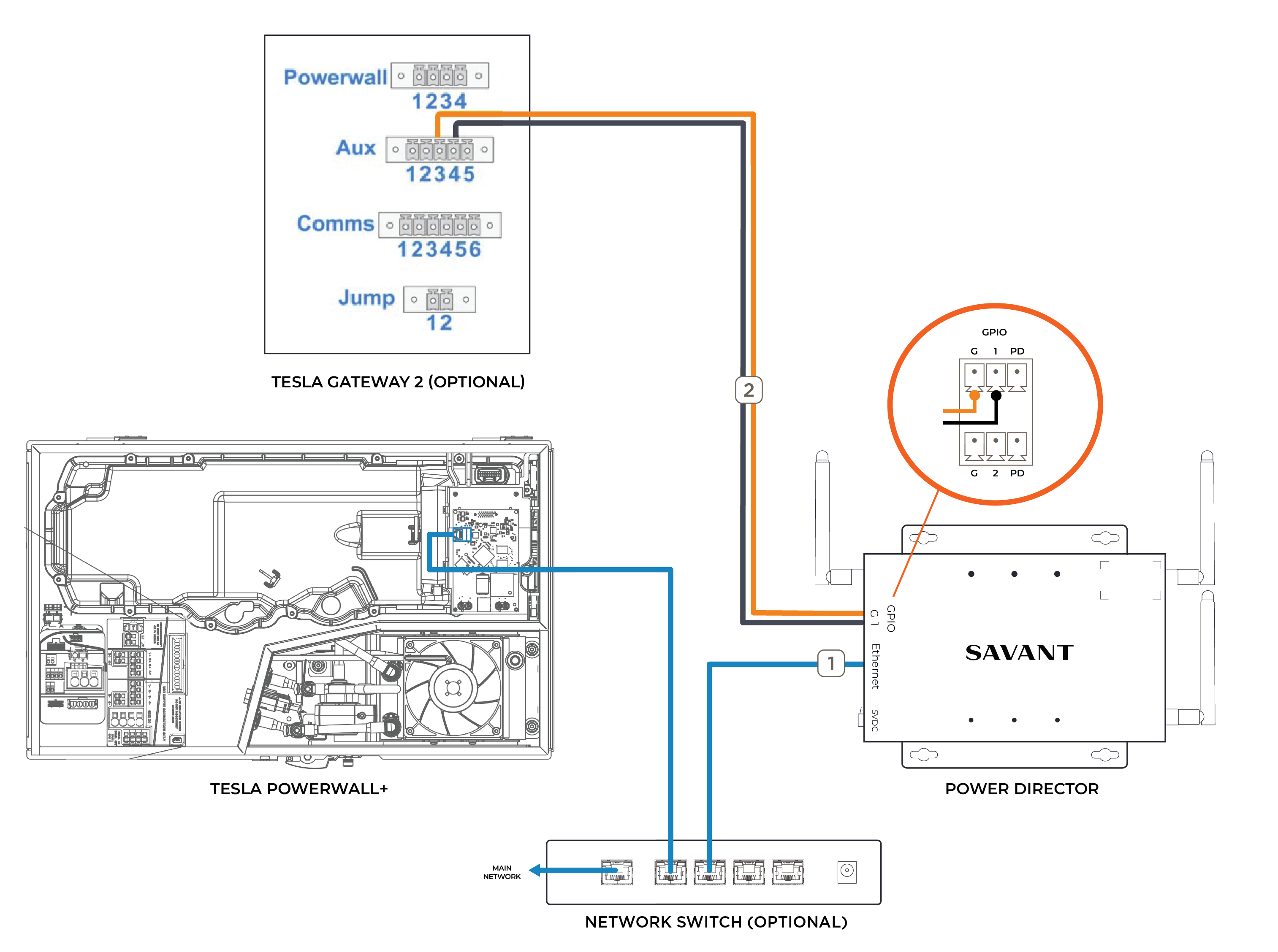
The Savant Power Director and Tesla Powerwall+ is connected via Ethernet cable or Wi-Fi and must be on the same network. If the installation includes a Gateway 2, Savant recommends running a single pair black and red wire size #18-16 AWG from the auxiliary pins 3 and 4 on the Gateway to the GPIO 1 connection port of the Director. The GPIO is used to monitor Grid State and recommended when using off-grid load shedding relay. The detection of grid changes by the Director is faster than the Ethernet connection when using the GPIO. However, GPIO connections are not required for the Director to function. See the diagram below.
NOTE: The Tesla Powerwall+ requires a Backup Switch or Gateway 2. If the installation is using the Backup Switch the GPIO wiring is not used.
Enable Low Voltage Relay for Tesla
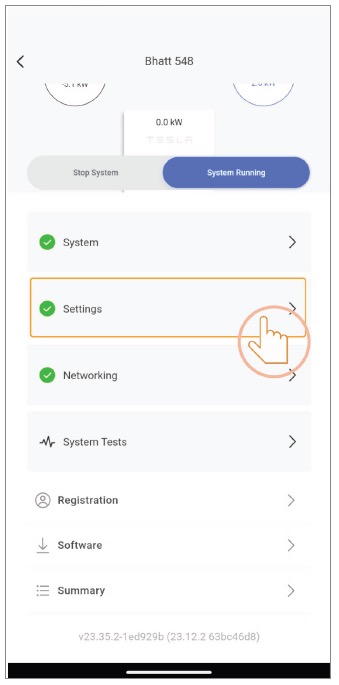
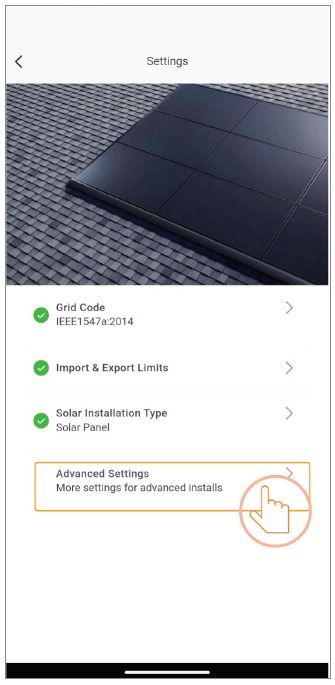
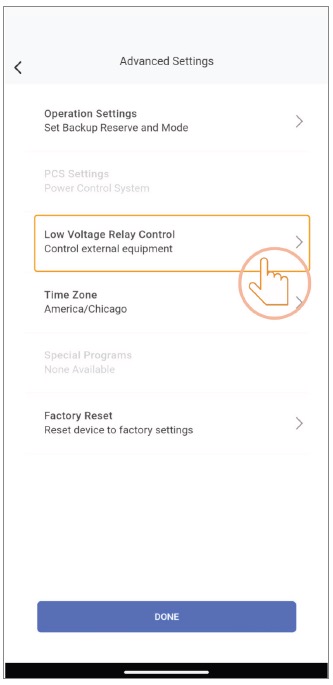
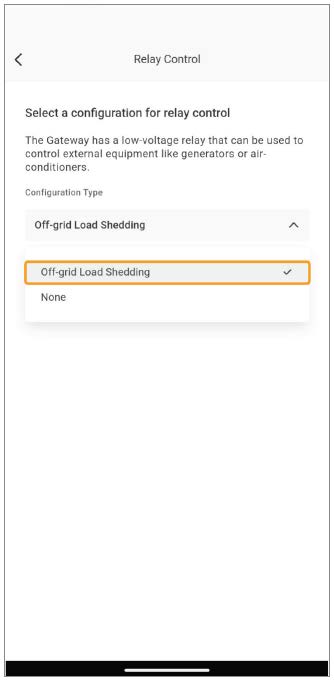
During the commissioning of the Tesla Gateway, ensure that the Low Voltage Relay Control (LVRC) is enabled if the GPIO wiring was installed with the Gateway 2. This feature can be enabled in the Advanced Settings section of the Tesla One app. A login is required to access the Tesla One app settings. Enabling the LVRC is a critical step to facilitate communication between Tesla and Savant. This will enable the GPIO communication between the Tesla Gateway and the Savant Director that was established in Step 1.
NOTE: This step is not required if using the Backup Switch and is only available when using Tesla Gateway 2.
Finding the Tesla IP Address
The Tesla IP Address is needed to enable communication between Tesla and Savant.
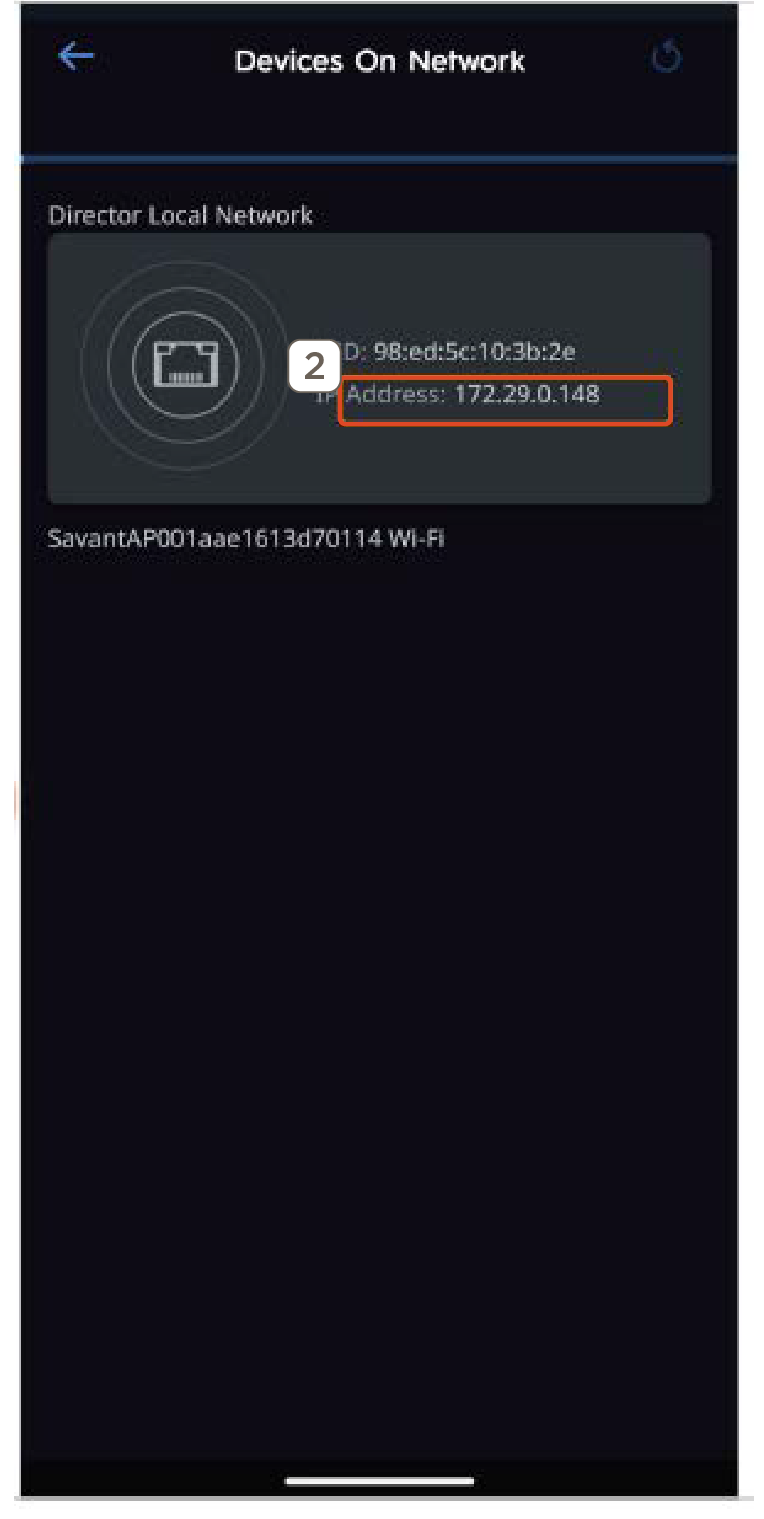
- Navigate to the menu option at the top right of the screen, then select Devices on Network.
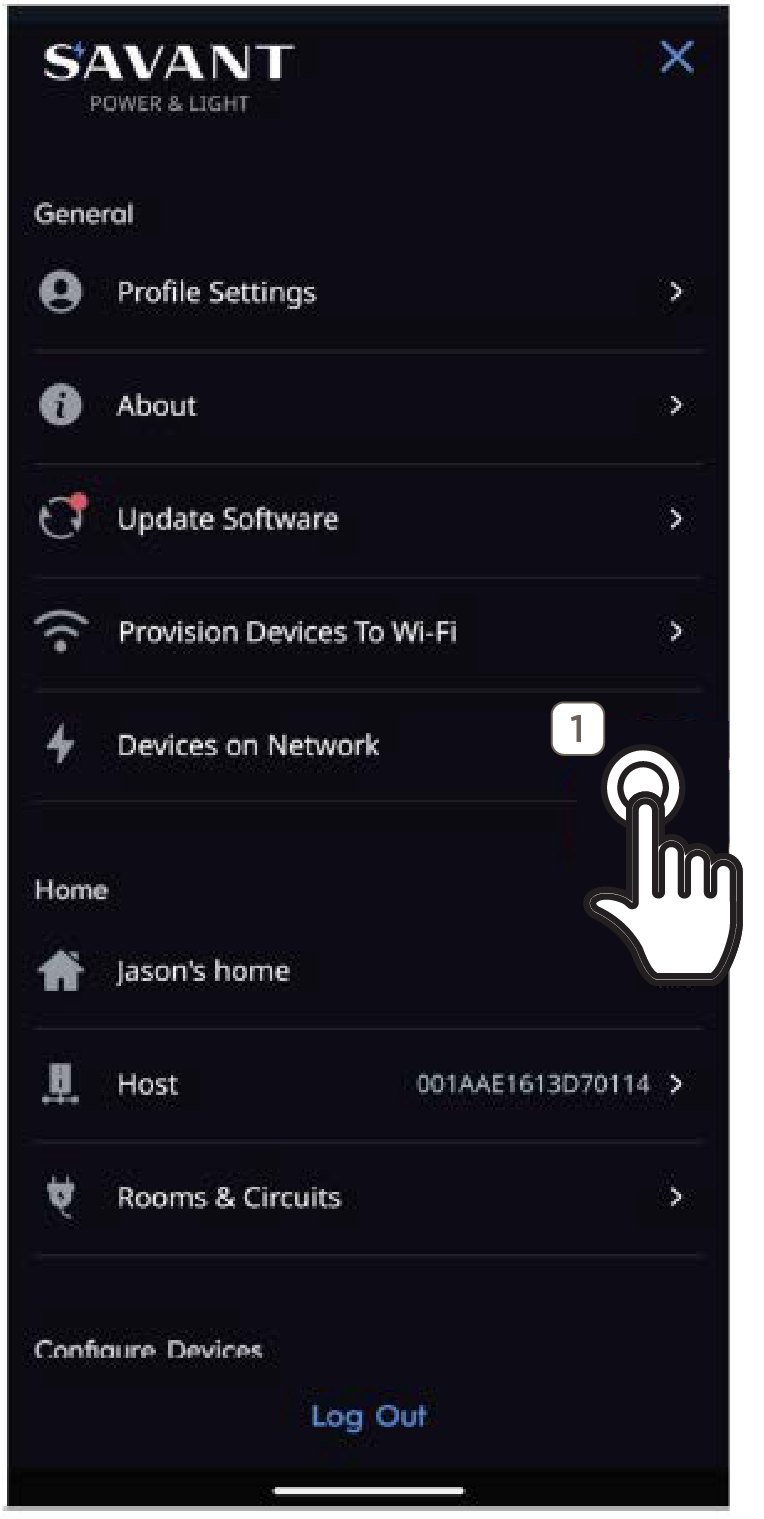
- Here will be the IP Address of the Tesla system. Record IP Address for the next step.
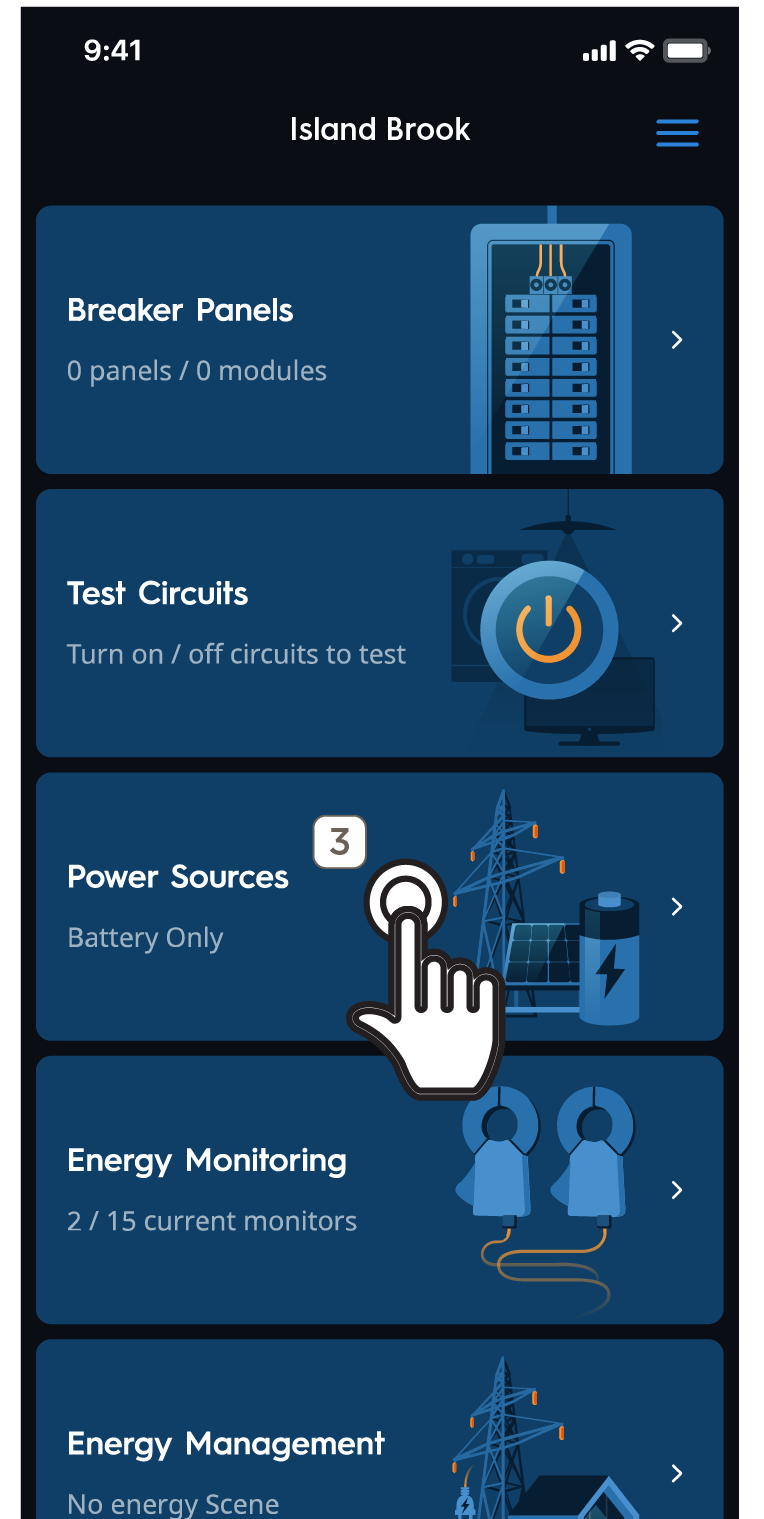
- Select Power Sources in the main menu to move forward.
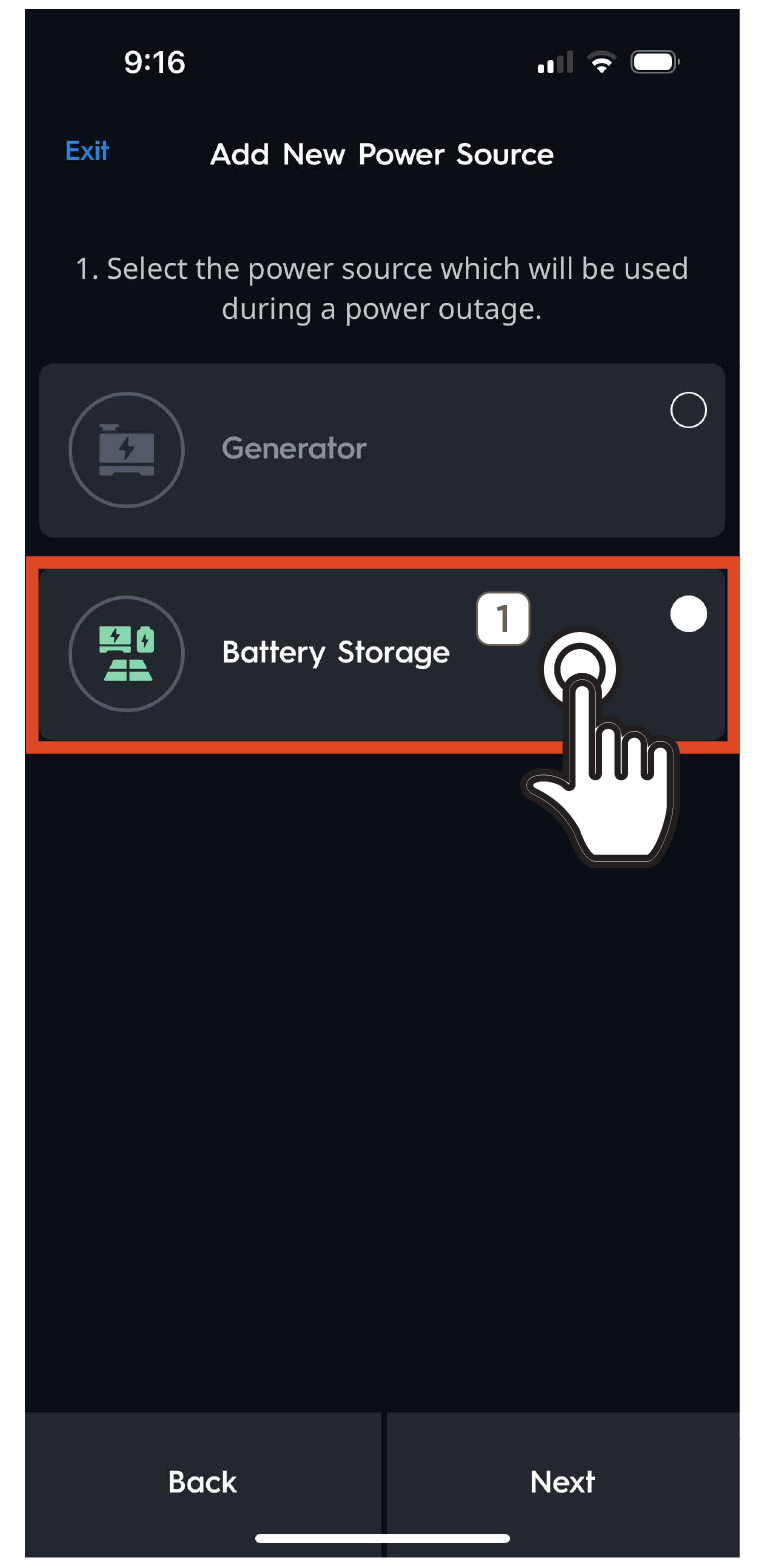
Add a Power Source
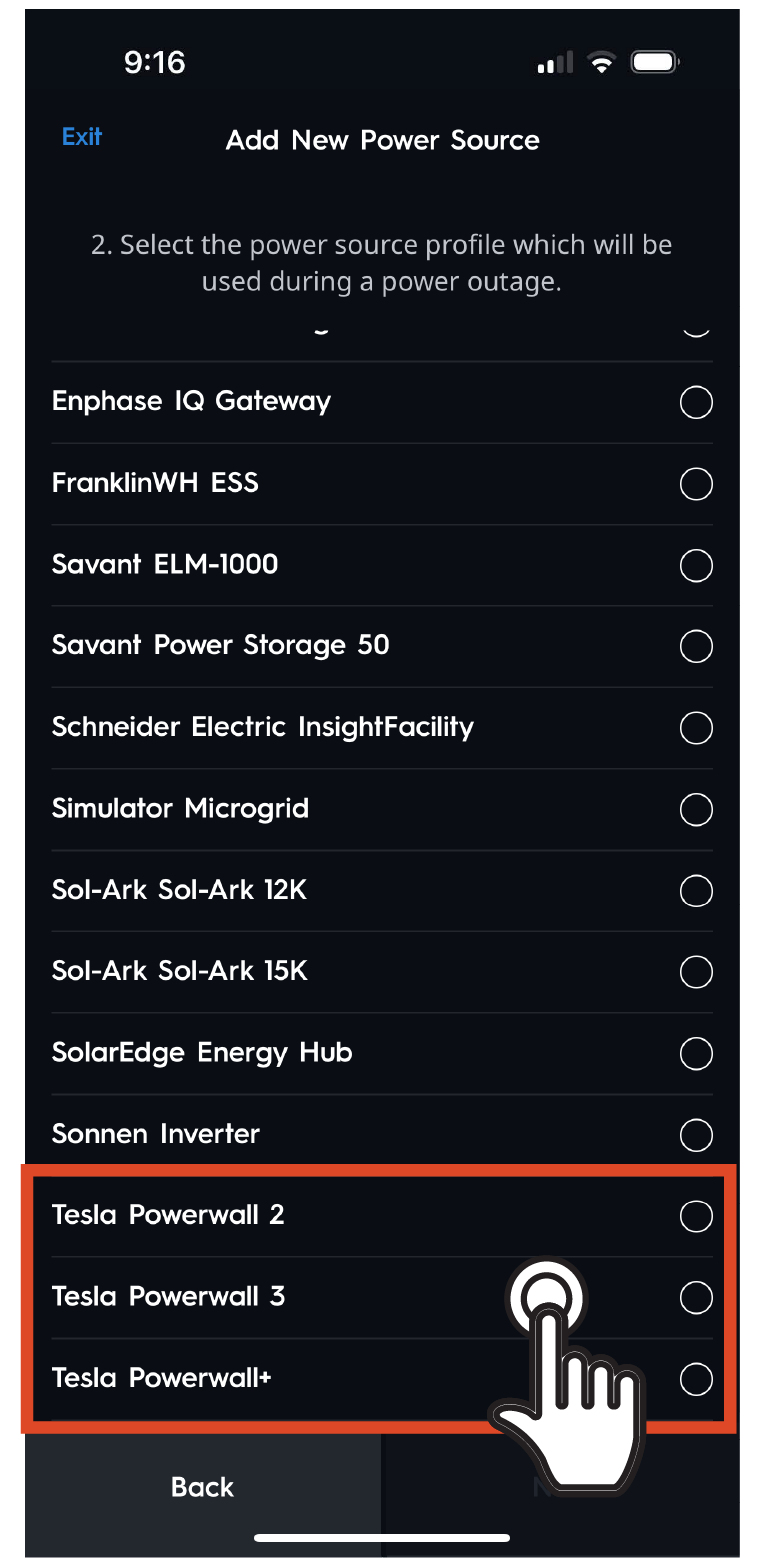
- In the Power Sources option, choose Battery Storage. Then, select the appropriate Tesla Powerwall that matches the hardware being integrated, from the available options. (Tesla Powerwall 2, Powerwall 3, or Powerwall+)
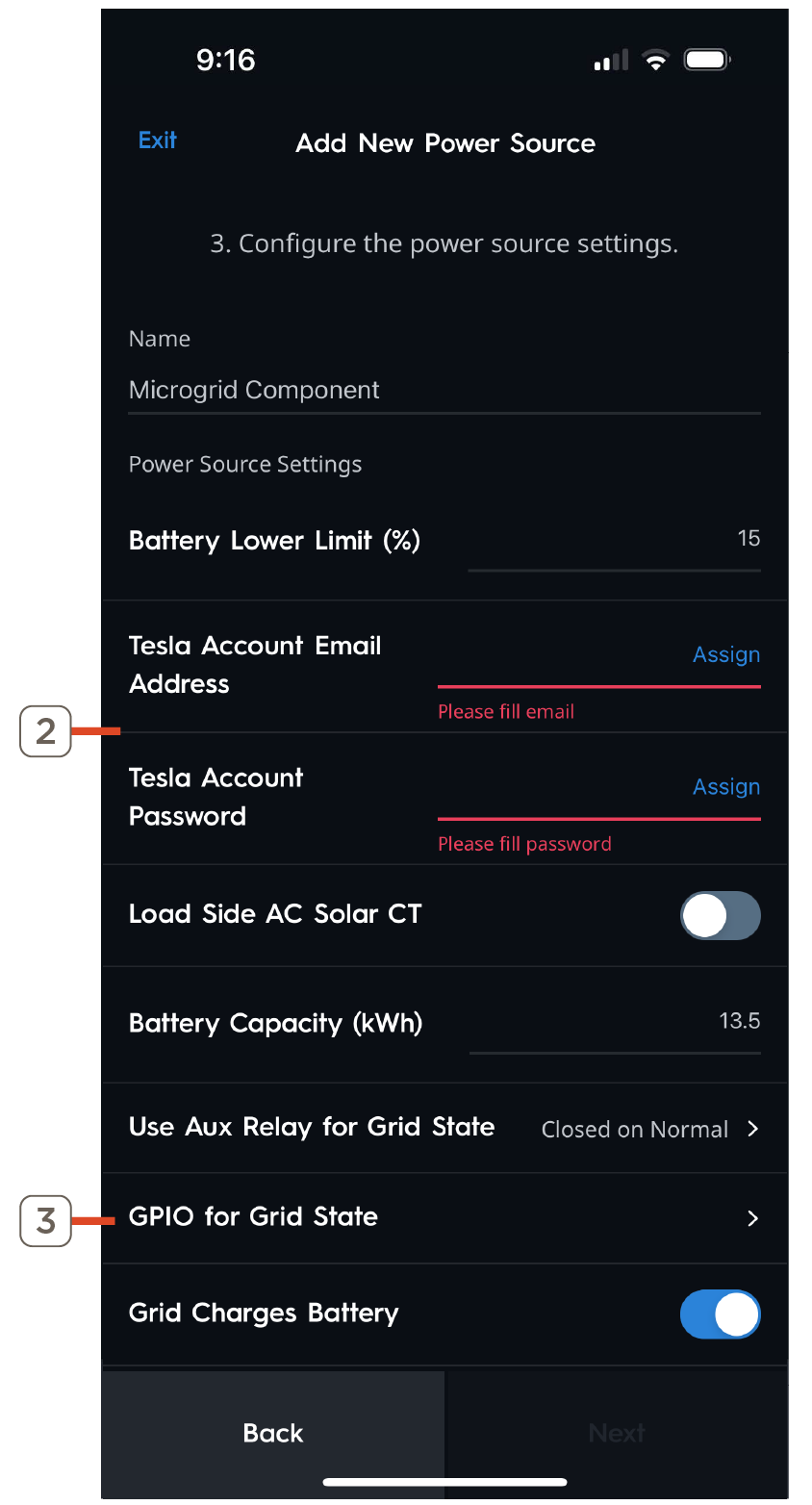
- Enter a valid Email Address and Tesla Password.
- For Tesla Powerwalls on older firmware use a Tesla Account Email and password.
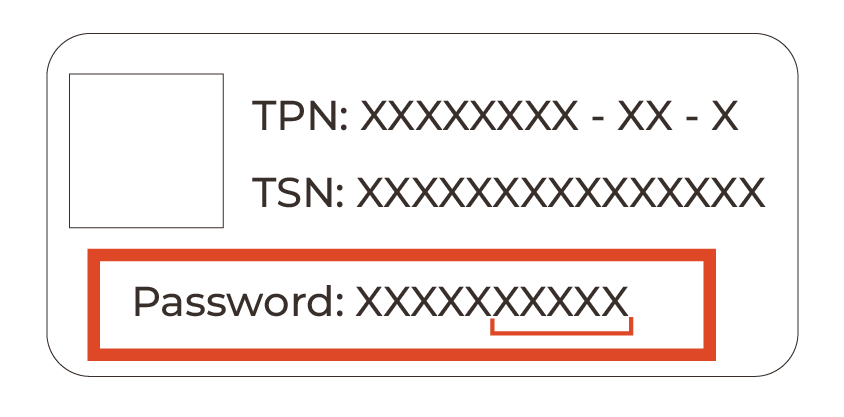
- The Tesla Password is the last 5 digits of the Tesla Powerwall Wi-Fi Password. This can be found on the label of the Powerwall Gateway.
- If the GPIO wiring for Grid Detection is used, set the GPIO for Grid State setting to GPIO 1, otherwise leave the setting blank.
- Enter the IP Address recorded in the previous section step 2 for the Inverter IP Address.
- Enter the maximum Continuous Inverter Output (kW) of the Battery Inverter.
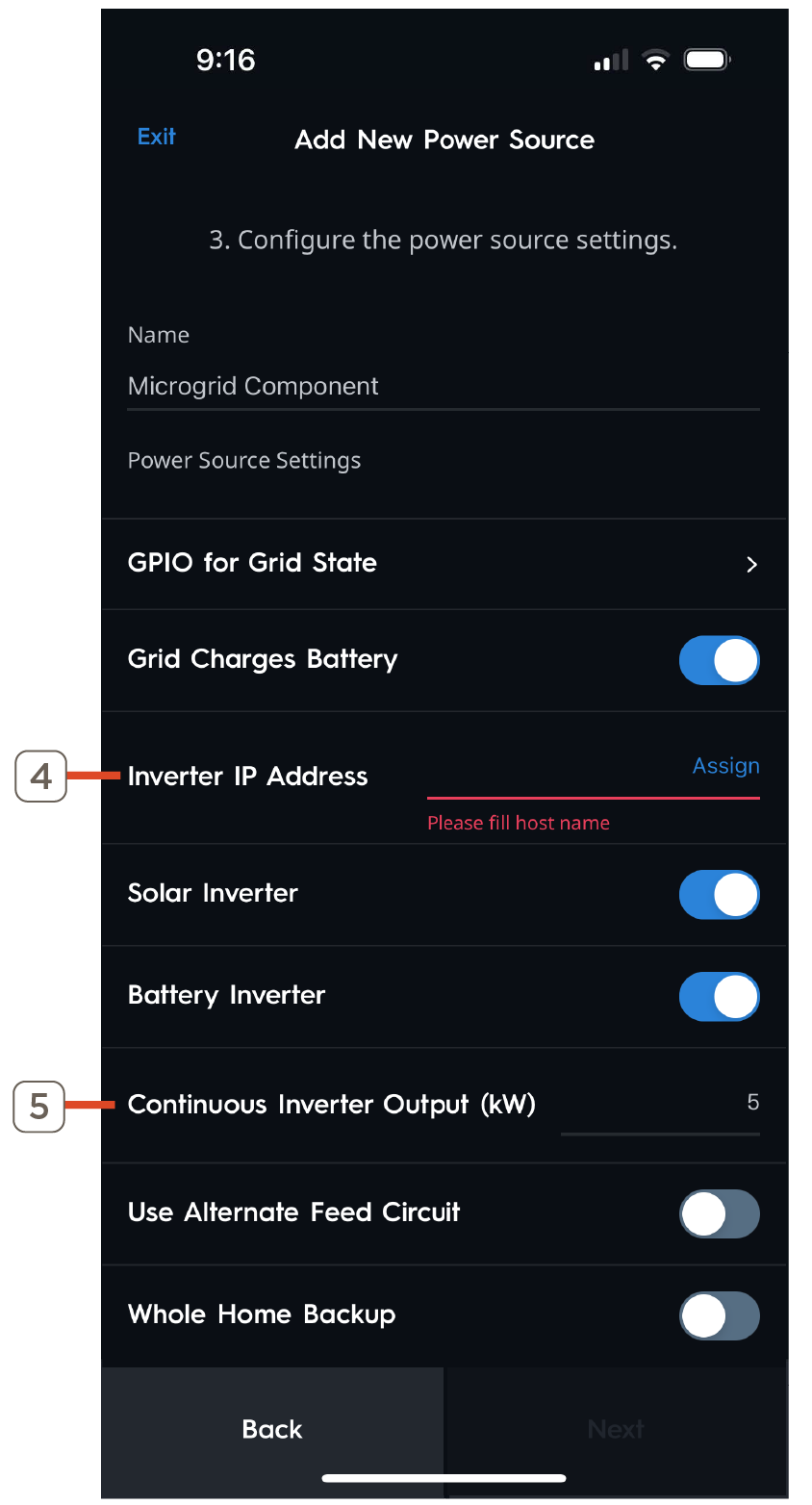
IMPORTANT! Only enable Whole Home Backup if the Battery Inverter can support the full capacity of backed up loads while Off Grid.
Savant Load Management with Tesla Powerwall Reference
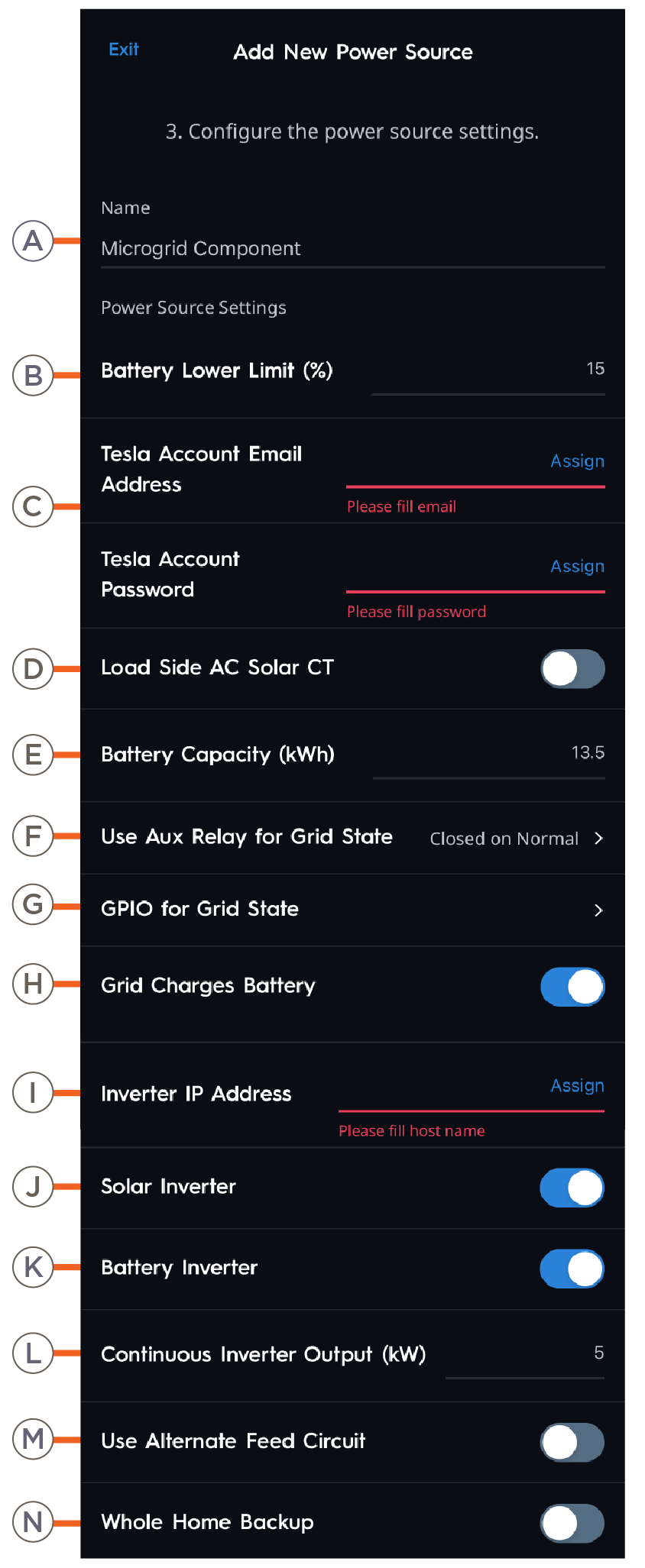 | A | Name | Name of the inverter as it will appear in the Savant Power & Light app. |
| B | Battery Lower Limit (%) |
Affects battery scaling between Tesla Powerwall and the Savant Power system.. NOTE: Set to 5% as a baseline. Adjustments can be made as needed after testing to compare state-of-charge readings shown in Tesla app vs Savant. A battery SoC of approximately 20% is recommended for comparison testing. | |
| C | Tesla Account Email Address Tesla Account Password | Enter valid email here. / Enter Tesla password here. (Last 5 digits of Tesla Powerwall Wi-Fi password) | |
| D | Load Side AC Solar CT | Enable if a Current Track Module or SEM-2015 is used to measure Solar. | |
| E | Battery Capacity (kWh) | The capacity of the battery in kWh. | |
| F | Use Aux Relay for Grid State | If using GPIO to measure Grid State set to "Closed on Normal". Otherwise set to "Not Used". | |
| G | GPIO for Grid State | If using GPIO to measure Grid State select GPIO 1 or 2. Otherwise leave the setting blank. | |
| H | Grid Charges Battery | Enabled: Grid will charge the installed battery. Disabled: Grid will not charge the installed battery. | |
| I | Inverter IP Address | IP Address of the Inverter. | |
| J | Solar Inverter | Whether solar panels are present within the Savant Power System. | |
| K | Battery Inverter | Whether batteries are present within the Savant Power System. | |
| L | Continuous Inverter Output (kW) | Rated capacity of the Inverter. | |
| M | Use Alternate Feed Circuit | Monitor Feed with Current Track Module instead of Inverter data. | |
| N | Whole Home Backup | Whether the inverter is capable of powering the entire home during a power outage. For more information, see the Savant Power System Design Guide. |